HRToolkit is a companion browser extension for Horse Reality. It helps you track your horses' stats, name and tag them, customise how the game looks, navigate the site faster, keep a searchable database of every horse you care about, view detailed analytics based on your estate database, and easily plan what horses to breed together – all without ever having to leave HR.
Getting Started
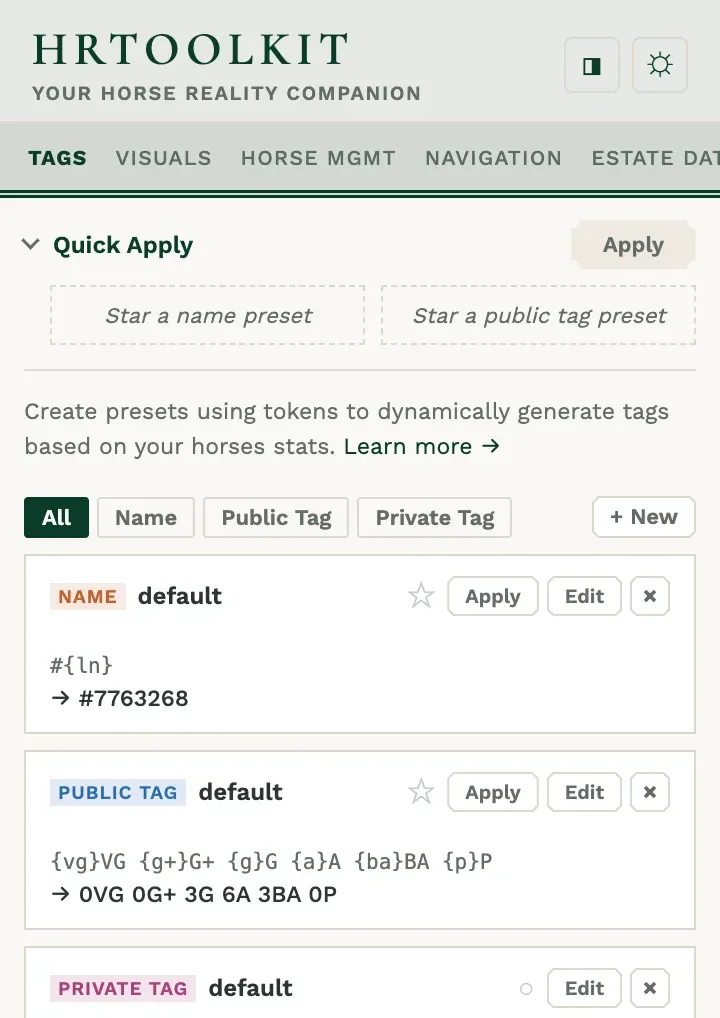
Install HRToolkit from the Chrome Web Store or Firefox store, and you'll see the HRToolkit icon appear in your browser toolbar. Click it to open the popup, this is your control centre for everything the extension does.
A few things to know right away
- Open in the sidebar: The button in the popup header opens HRToolkit in Chrome's side panel instead, so it stays visible while you browse Horse Reality. (This needs a browser that supports Chrome's side panel, most up-to-date Chromium browsers do.) Note that in Firefox, HRToolkit opens directly in the sidebar.
- Light & dark theme: The theme toggle in the header switches the whole popup between light and dark mode, and remembers your choice.
- Settings backup: Export or import your settings from the Help tab, this allows you to move settings between Chrome and Firefox or computers. Note, your Estate Database isn't included.
Visuals: Backgrounds & appearance
The Visuals tab controls how horse profiles and pages look, it is split into four subtabs: Profiles, BG Settings, BG Library, and Others.
Profiles
This tab covers things that are mostly contained to horse profiles.
Summary highlight
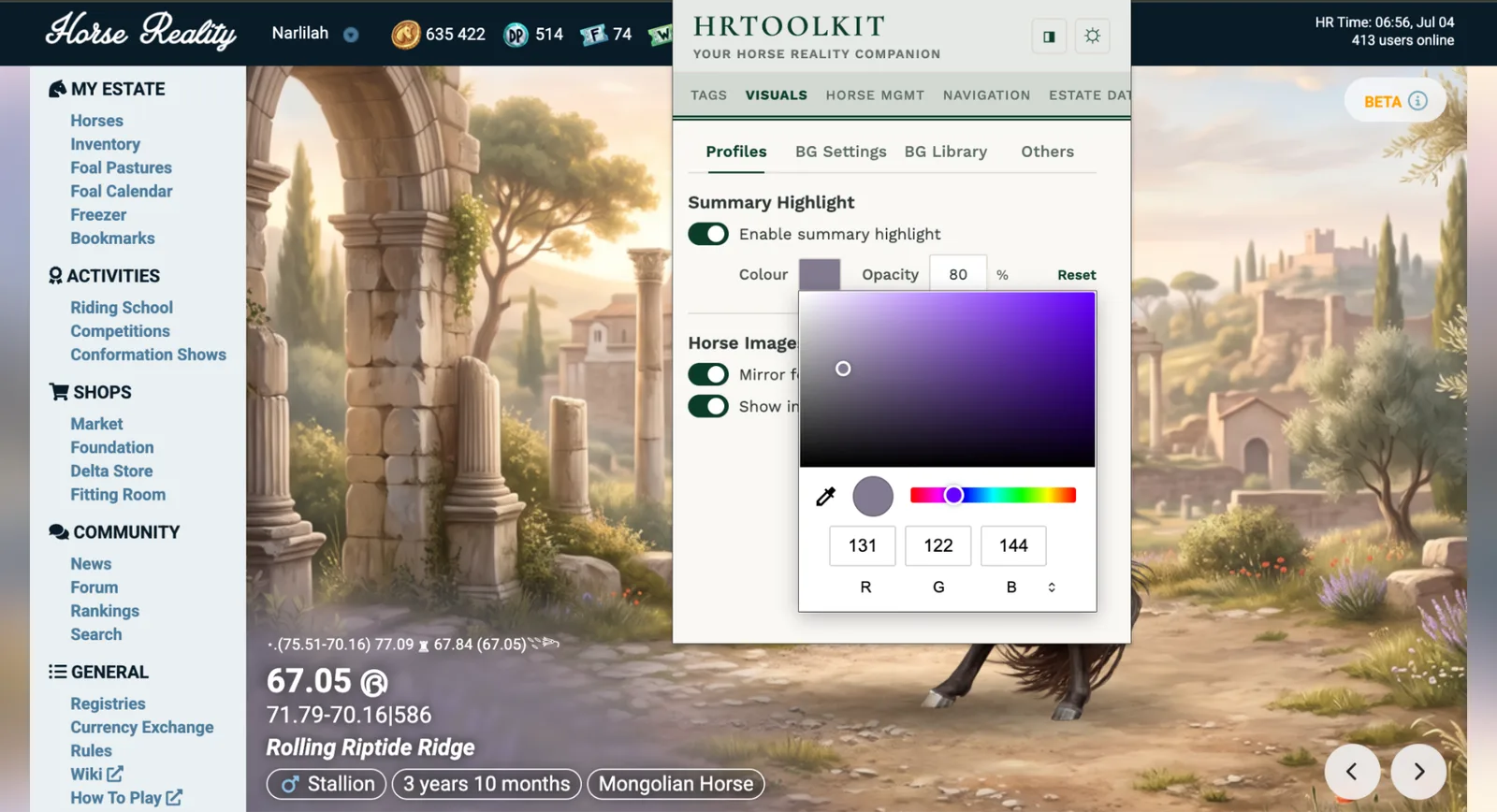
"Enable summary highlight" edits the black tinted mask on the text area on horse profiles in the bottom left. You can pick your own colour and opacity so it matches your background or theme, or you can turn it off completely.
Horse images
- Mirror foal images: Flips foal images horizontally so they face the same way as their dam.
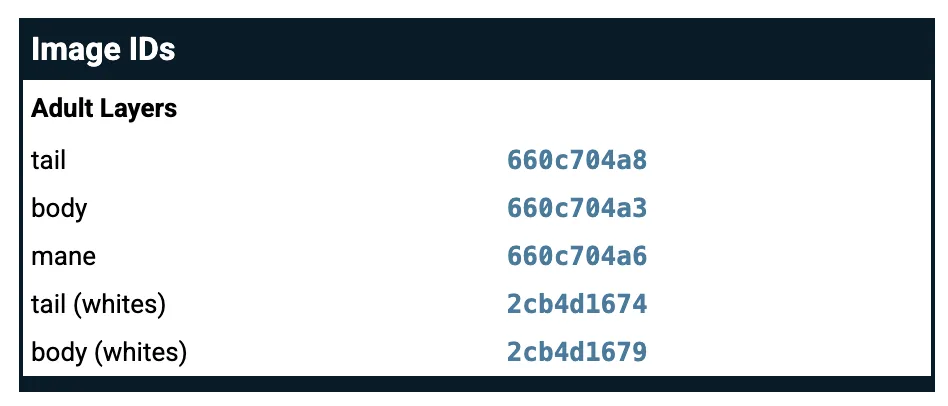
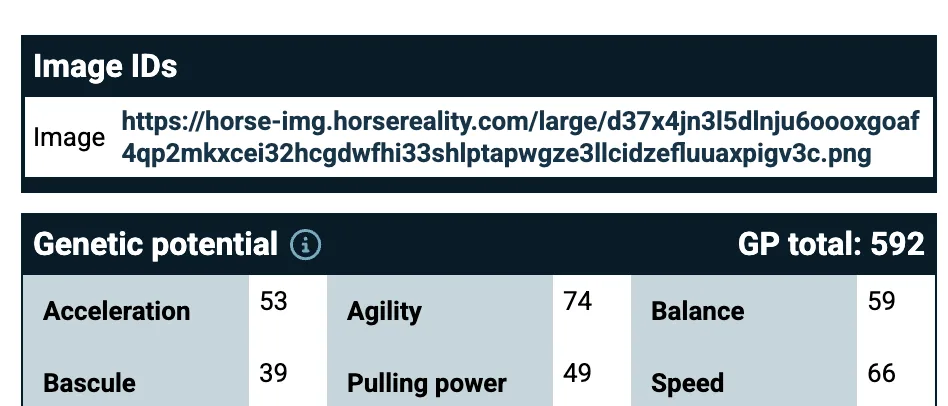
- Show image IDs: Adds a reference table of the horse's image IDs. When it is a horse on V1 it will show all layers, for V2 horses it will only show the single image url.
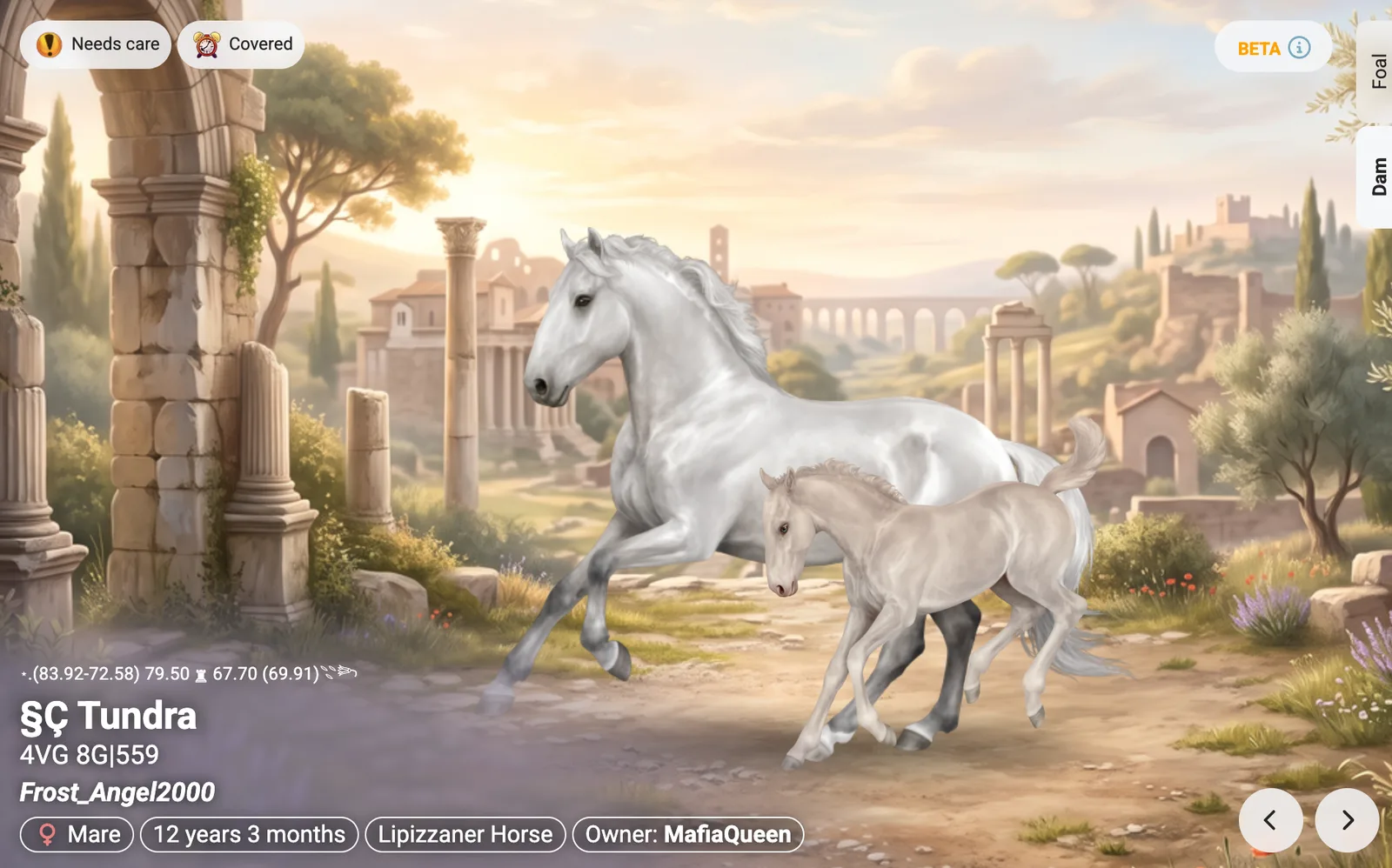
Background (BG) settings
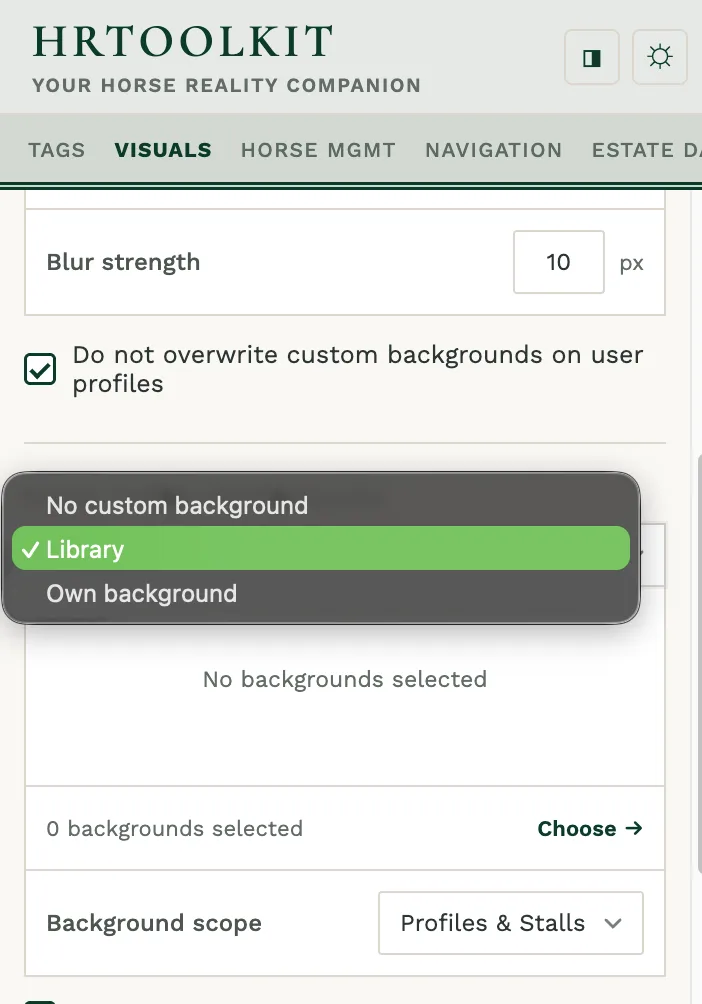
Game backgrounds
Replaces the page background across Horse Reality:
- Set from no custom background -> Library or Own background
- Library: Select a background from the background library.
- Own background: Paste a url to your own background.
- Skip on custom profiles: Leaves player-set backgrounds on user profiles untouched.
- Blur strength: You can blur the background for a softer look. Accepts a value between 0–50px.
Horse image backgrounds
Replaces the background behind horses on horse profiles (and stalls). It’s important to note that it is discouraged to use official HR backgrounds as per Horse Reality’s rules.
- Set from no custom background -> Library or Own background
- Library: Select a background from the background library.
- Own background: Paste a url to your own background.
- Background Scope: Choose to apply custom backgrounds on Profiles & Stalls or Profiles only.
- Skip equipped backgrounds: Won't overwrite backgrounds a player has already equipped on a horse in-game.
- Add ground shadow: Place a soft shadow beneath the horse so it sits more naturally on custom backgrounds that do not have a shadow pre-placed.
- Shuffle: You can select up to 5 backgrounds at a time for horse backgrounds. The selected backgrounds will shuffle on every page load.
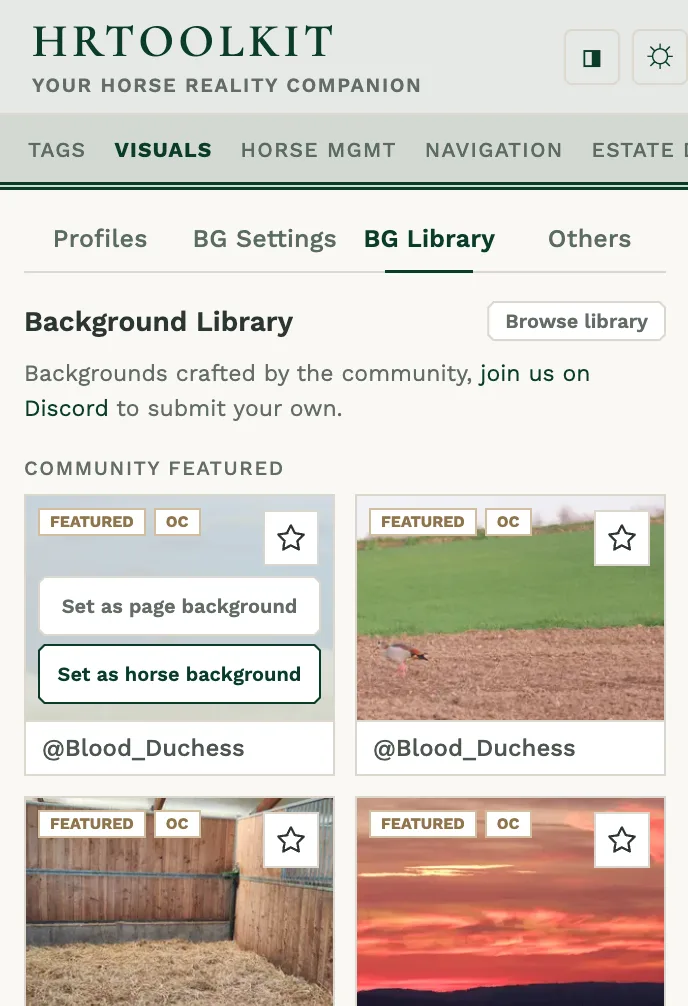
Background library
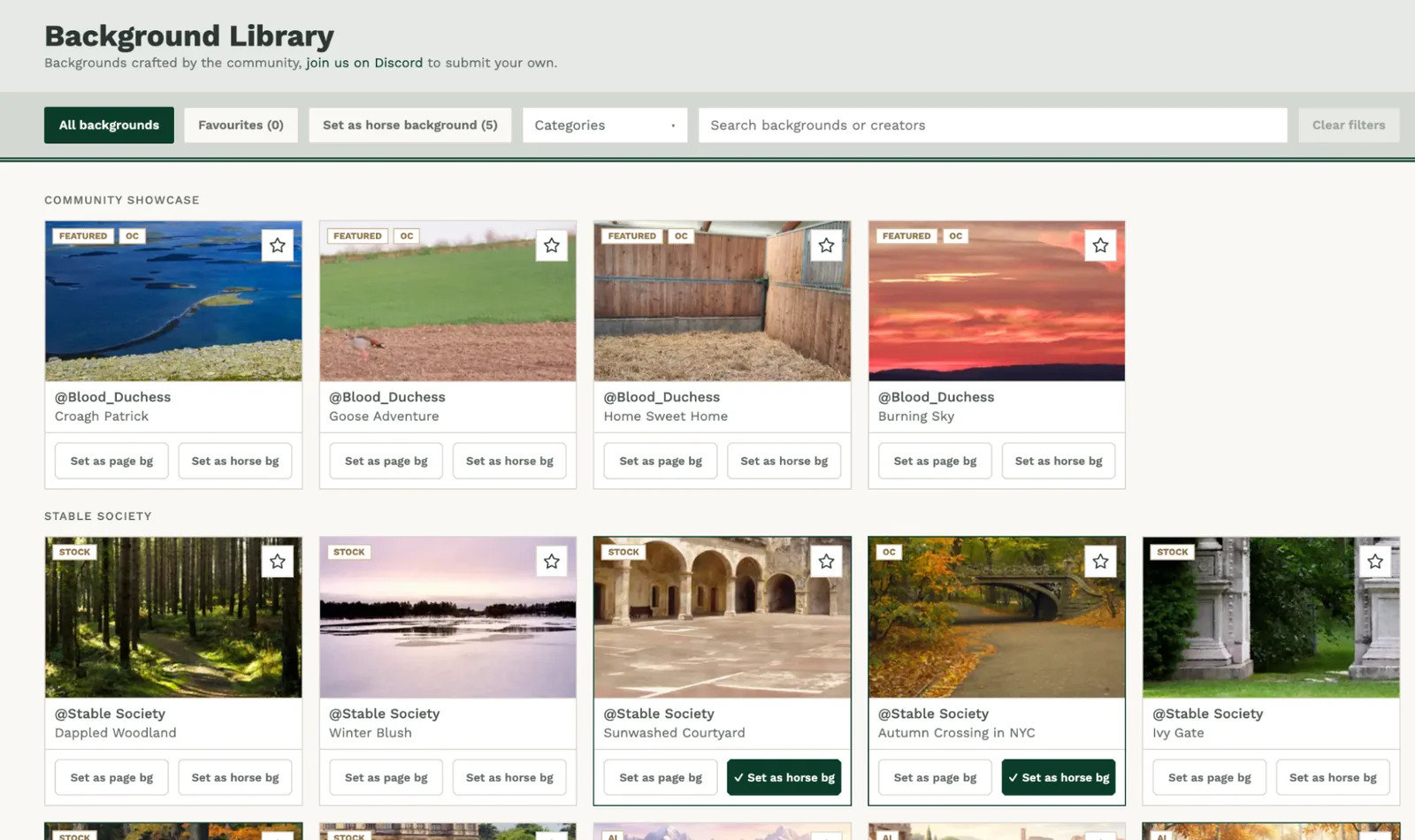
Don't have a background handy? The Community Background Library ships with backgrounds made by community members and Stable Society. Click Browse library to open the full library. You can select and unselect images for your background shuffle from here in addition to within the popup.
Favourites: Click the star on any background to save it to your favourites. Your first few favourites also show at the top of the BG Library tab, and the full list is in the full library view.
Filtering: When in the full background library page you can search by name or creator, pick one or more categories, or switch between All backgrounds, Favourites and the backgrounds set as your horse background. Clear filters reset everything.
Want to submit your own? Join us on Discord and submit it to the background library channel. We do accept AI submissions so long as they are clearly tagged as such. All submissions are credited. If you are an artist and submit non-AI generated or assisted backgrounds you are welcome to watermark your submissions, non-AI community submissions will always be showcased and prioritised within the community gallery. With over 800 users it’s a great way to expose HR players to your art and you get to give back to the community.
Others
- Allow stable blocks tabs to wrap: On stall pages with lots of stable blocks, the tabs normally scroll sideways. Turn this on and they wrap the tabs onto multiple rows instead, so everything's visible at once.
Tags presets: Names, taglines & private tags
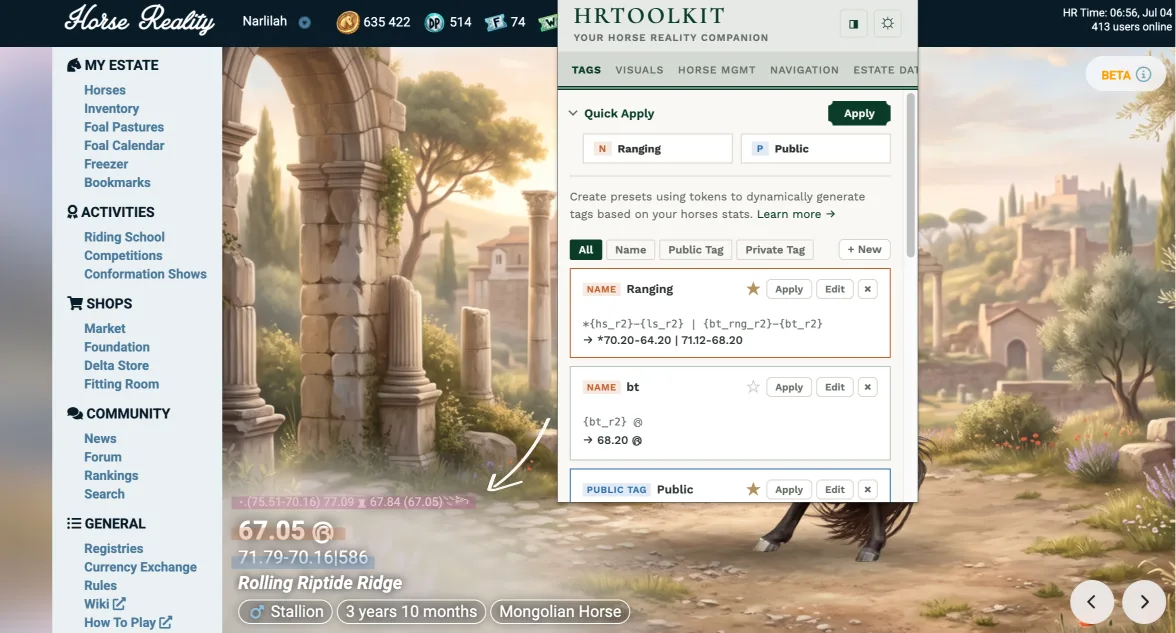
The Tags tab is where you build and apply reusable presets for horse names, public taglines, and private tags. Presets use tokens, these are little placeholders like {gp} or {hs_r2} that get replaced with the actual value from whichever horse you apply them to. You can use these tokens in combination with static text.
You can see this discord post for some commonly used templates. Otherwise, the Token Legend can be found under Help -> Reference Library -> Token legend. The legend lists all of the possible tokens and their associated patterns.
There are three kinds of preset:
- Name: Used to generate horse names. For example
#{ln}names a horse with its lifeline number. - Public Tag: Used to generate public taglines. For example
{vg}VG{g+}G+{g}G{a}A{ba}BA{p}P produces a compact conformation summary like ‘4VG 3G+ 2G 1A 0BA 0P’ - Private Tag: A tagline that only you can see, stored inside the extension database and displayed on HR is specific places. You can create as many private presets as you like but only one display at a time. Use the eye icon to toggle your selected one on or off.
Creating and editing presets
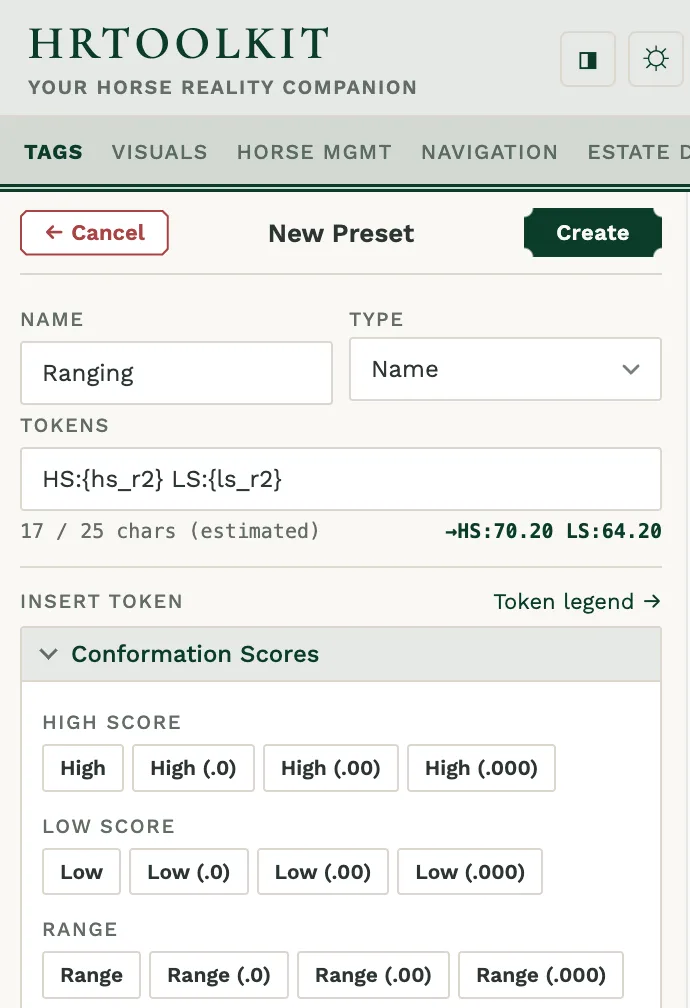
While on the Tags tab click + New (or edit an existing preset) to open the preset editor.
As you type your token formula, a live format preview shows you an example of what the output will look like. For name presets, a character count warns you when the estimated result goes over 25 characters due to character limits for names on HR. Every token available is listed in the accordions so you don’t have to memorise them.
Tokens cover a lot of ground: conformation scores (high/low/range with optional rounding precision points), individual conformation stats, per-discipline breakdowns, genetic potential (overall and per trait), discipline percentages, breed totals, competition scores, veterinary stats, height, birthdate, colours, and COI.
If there is something you’d really like added as a token, you can make a suggestion in the Discord and our team will look into it.
Quick apply
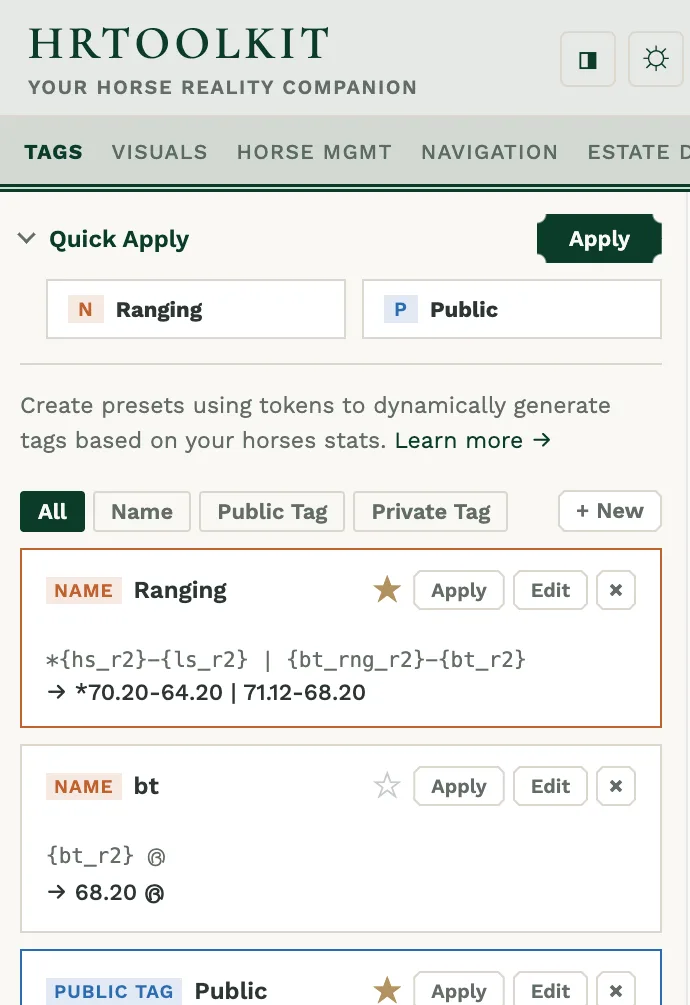
The Quick Apply bar at the top of the Tags tab is a way to apply a name and public tag preset to any horse you own with just one click. Star a name preset and/or a public tag preset, then hit Apply while you're on one of your horses' pages - both fields will fill at once and the page will reload.
Horse Data: All-time scores, colours & competition stats
HRToolkit records and calculates these values for every horse you save. They are then used across the extension; in tag presets, the Estate Database, database filters, analytics and the Breeding Planner.
All-Time score values
The all-time conformation show score values ({at_hs}, {at_ls} and the other tokens derived from them) track the highest and lowest score count from the moment the extension first records a horse's scores. Competition results have their own all-time values too, you can use them in tag presents by using {at_chs} and {at_cls}.
When a horse is saved to the horse database, its current high and low scores become the starting all-time values. Each later visit compares the scores shown on the page against the stored values and keeps whichever is more extreme, so the all-time high can only go up and the all-time low can only go down. Until a horse has been recorded, the AT tokens simply show the current visit's values.
The extension cannot know about a record high or low it never saw: anything achieved before the horse was first recorded, or while the horse was scored without being saved, is not part of its all-time values, alternatively you can manually edit/adjust these scores in the estate database editor view for horses saved to your estate database.
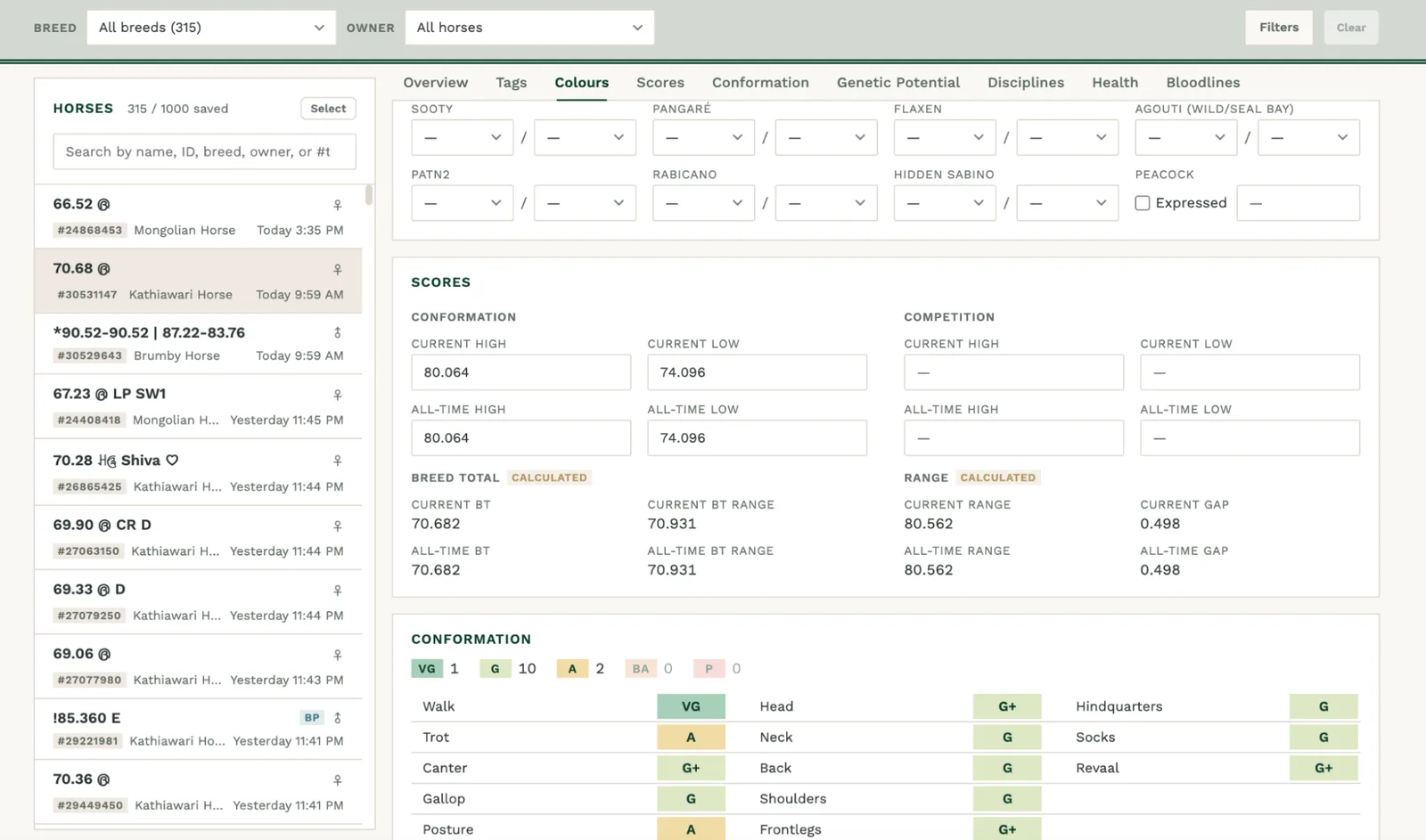
There is an all-time low score guard that you can enable under the tab Horse MGMT -> Shows & Competitions -> Score Recording. If this is turned on it will stop all-time low scores that are lower than the max possible low based on the current recorded all-time high score and breed. This is useful for protecting against all-time low values caused by a lack of care of tack.
Competition stats & values
HRToolkit calculates two figures for each discipline that are derived from GP and conformation that are available to use in presets. These are player made calculations, and are displayed in both the Estate database as well as printed on horse profiles on HR under Discipline Scores on the horse's genetics tab.
- Competition %: Measures overall suitability
- Estimated score range: Predicts the results a horse can realistically achieve in competition (tokens such as
{dr_est_ls}and{dr_est_hs})
In order to calculate these, HRToolkit must first calculate the GP average and conformation trait average as they are both used within the competition % and estimated score range.
GP trait average
(total of the discipline's GP stats) ÷ (number of stats)
Each discipline uses a fixed set of GP stats. HRToolkit takes the relevant stats and totals the values for those stats and divides by the total number of stats to get the average.
Conformation trait average
(sum of maximums + sum of minimums) ÷ (2 × number of judged traits)Each discipline also uses a specific set of conformation traits. The conformation trait grades are mapped to specific values. HRToolkit sums the best-case and worst-case values across all the judged traits, then averages them.
Competition percentage (%)
(0.75 × GP trait average) + (0.25 × conformation trait average)GP carries three times the weight of conformation traits.
Estimated score range
The same calculation as above is calculated twice; once using the worst-case trait grade values and once using only the best-case.
- Raw low:
(0.75 × GP trait average) + 0.25 × (sum of minimum trait values ÷ judged traits) - Raw high:
(0.75 × GP trait average) + 0.25 × (sum of maximum trait values ÷ judged traits)
Then the raw values are pulled halfway towards 100 and rounded down to the nearest half point, giving the lower and upper bounds of the score window.
100 − ⌈100 − (0.75 × GP trait average + 0.25 × (Σ judged-trait grade values ÷ n))⌉ × 0.5
…where n is the number of judged traits. As the scores on each end of the range are rounded they always land on whole or half points.
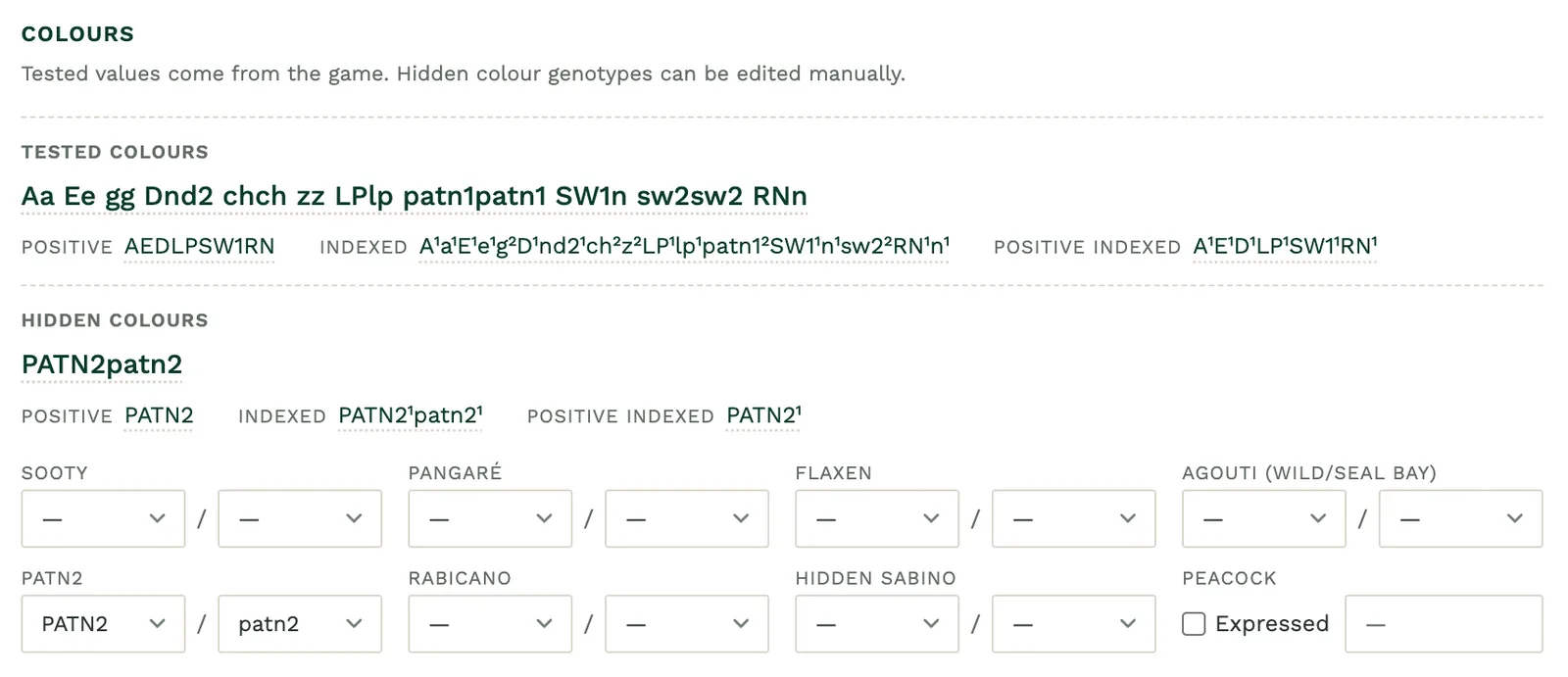
Colour values
HRToolkit has two families of colour values that it uses tag presets.
- Tested colours: These come from the horse's in game genetic summary for v2 breeds and from the colour table on profiles for v1 breeds. The horse must have its colour tests completed.
- Hidden colours: You enter these yourself in your Estate Database on the given horses profile pages.
Tested colours
Tested colour data comes directly from the genetic summary and colour results table on the horse profiles. Each token is one tested locus written as an allele pair, such as Aa, E/e, or G/g.
Tested colours are available for V2 and V1 breeds, however, V1 breeds will break when Horse Reality updates the horse profiles and it is asked that the community be understanding that we may choose to no longer support V1 breeds at any time, given all breeds are being transitioned to V2.
There are tokens for each gene, plus three group aggregates ({basic_colours}, {dilutions} and {white_patterns}):
- Basic colours: Agouti (A), Extension (E), Grey (G)
- Dilutions: Dun (D), Non-dun 1 (nd1), Cream (CR), Pearl (prl), Champagne (CH), Silver (Z), Mushroom (mu)
- White patterns: Frame (OLW), Leopard (LP), PATN1, Splashed white (SW), Tobiano (TO), Sabino 1 (SB1), Roan (RN), Dominant white (W)
Hidden colours
You can enter hidden colours yourself on each horse's record in your Estate Database. Hidden loci are Sooty, Pangaré, Flaxen, Agouti (wild/seal bay), PATN2, Rabicano and Hidden Sabino. You can record a suspected copy of a positive allele with a ?. For example if you suspect your horse carries STY you can mark it with STY?.
Peacock is slightly different as it is a hidden inheritable trait powered by a numerical value rather than an allele pair. It has its own {hidden_peacock} tokens. You can record peacock by:
- Expressed: Whether the horse visibly shows the Peacock coat or not.
- Line count: How many generations in their pedigree have peacock coats expressed. This is a proxy metric to try and gauge how ‘strong’ the peacock trait is.
Token variants
All gene and group token sets come in four forms:
- Base: The full allele pair (ie.
Aa) - Indexed: The full allele pair with copy counts as superscripts. Indexed tokens count copies instead of listing the allele twice:
EErenders asE², andEeasE¹e¹. - Positive: Positive alleles only (ie.
A). A horse with no positive alleles at a locus renders empty in positive form, so positive only tokens give you a compact list of everything the horse carries. - Positive indexed: Positive alleles with copy counts as superscripts:
AabecomesA¹.
Estate Database: Your personal database
The Estate Data tab is the entry to your personal horse database. Every horse you save is captured there with its full stats. You can browse, manage, and export it all. It has three subtabs (Saved Horses, Breeding Partners and Settings) and links to the full Estate database, Analytics, Breeding planner and Foal calendar views.
Estate Data tab
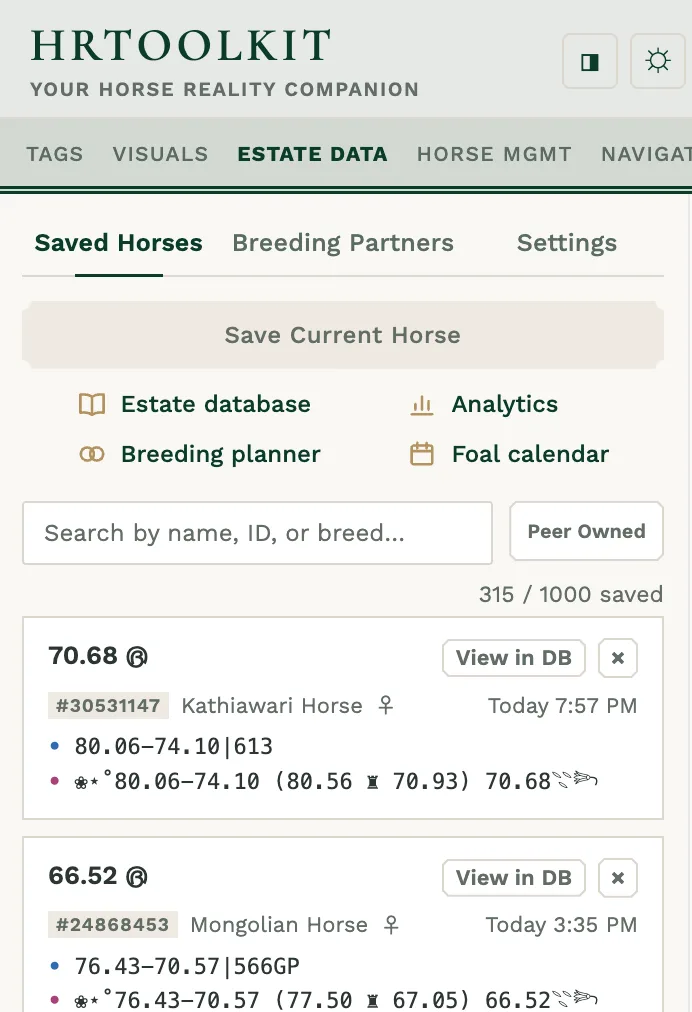
Found in the popup. This is where you save horses, manage breeding partners and export your database.
Save horses
- Save Current Horse: Saves the horse you're currently viewing.
- Auto-save: Horses you own and your breeding partners are saved automatically whenever you visit their profile. They re-save when something has changed. Note that retired and deceased horses aren't added automatically regardless of owner.
- Auto-delete on retire: When you retire a horse on the retirement page, it's quietly removed from your database for you.
Each saved horse is recorded with its full details; name, lifeline number, breed, sex, owner, GP, BT, high/low conformation scores, competition scores, coi, discipline based scores, pedigree, birthdate, height, statuses (retired, deceased, at stud, pregnant), colours, and a timestamp of when it was last saved.
Saved horses' HR profiles show a View in DB link to their record, which you can turn off under Estate Data -> Settings.
Breeding partners
Add other players under Estate Data -> Breeding Partners (up to 20). Turn on auto-save for up to 5 of them and their horses save as you browse, even with auto-save off. Their horses can be identified in your database by the BP badge and filtered via the ownership dropdowns.
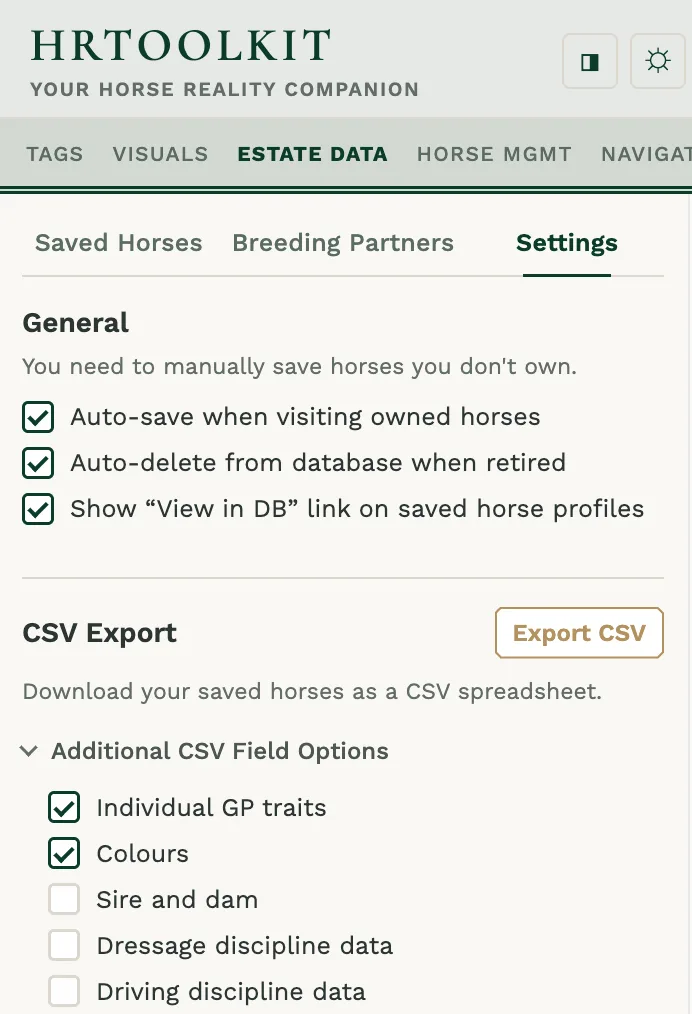
Exporting to CSV
Export CSV downloads your whole database as a spreadsheet. All exports come with the base columns but you can export additional via selecting them in the option accordion. Options include sire and dam, and per-discipline data.
Estate database
Open the Estate database from the Estate Data tab and click a horse from the list to see its full record. The horse record has all of the detailed information saved and the stats that Toolkit calculates for you. Individual horses can be deleted from the list, or you can clear the whole database.
Bloodlines
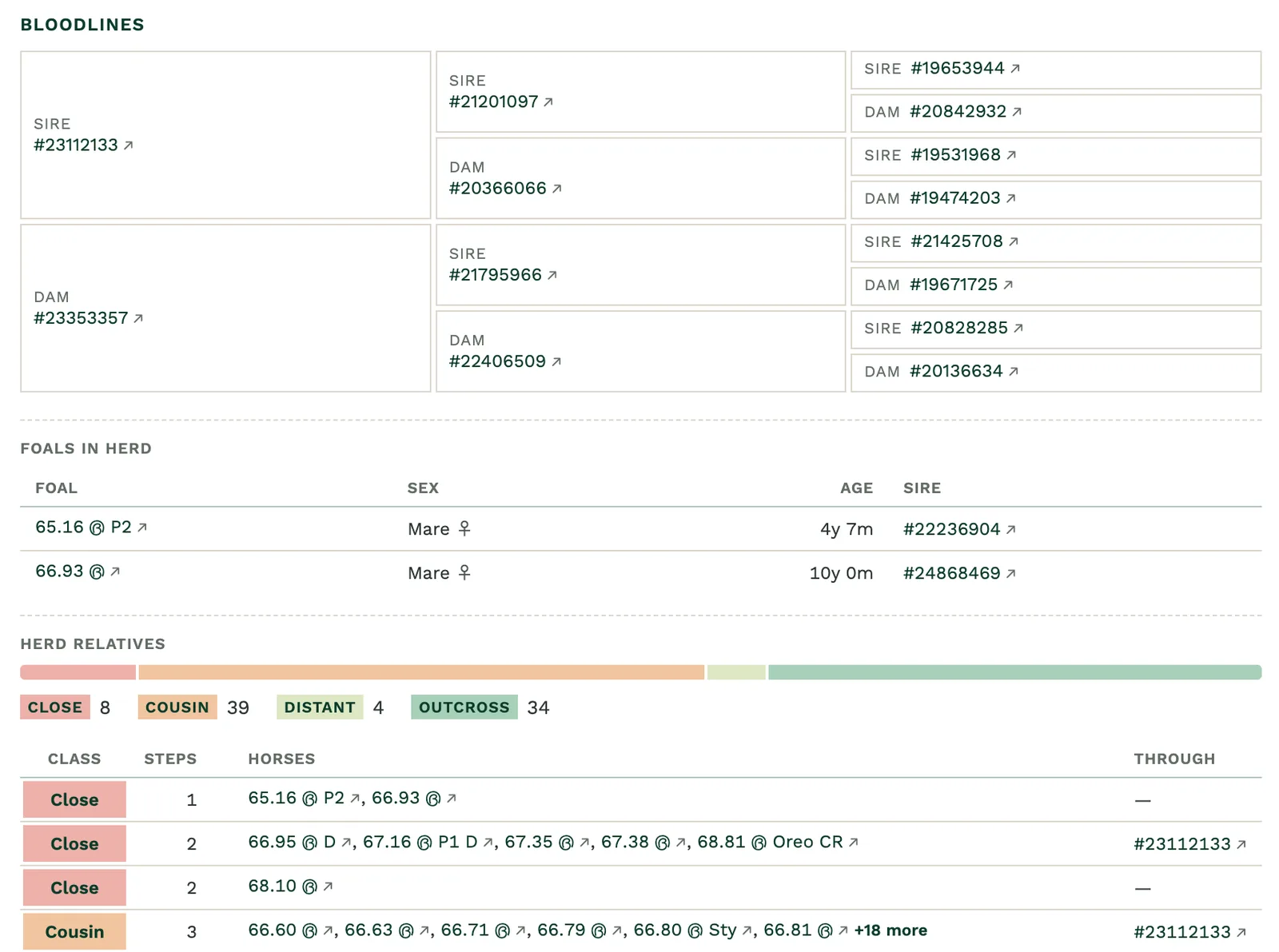
The Bloodlines section lists herd relatives, foals from that horse in your herd and a three-generation pedigree. Stallions also get an expected foals list when they have been stored in the foal planner. You can find further details about the bloodline calculations in the analytics section.
Editing the data
You can edit specific fields of your horses data in the database editor, for peer horses, only hidden colours, tags and analytics inclusion status are editable.
It is important to note that if you manually edit a horse and the values differ from what is on the horse's profile, the extension will over-write your edits when you next visit the given profile. This covers current values, name and tag. Edited all-time highs and lows are only replaced by a more extreme score. If you do not want this to happen; turn off auto saving OR keep the Ignore all-time lows outside breed range setting on under horse management to safeguard against shows without care from being recorded.
Colours & Modifiers
In order to use the tokens for hidden colours {hidden_colours} you need to edit them in your database. By entering the colours here you can keep track of what horses have hidden genes.
The hidden colour & modifier input fields
Horse tags
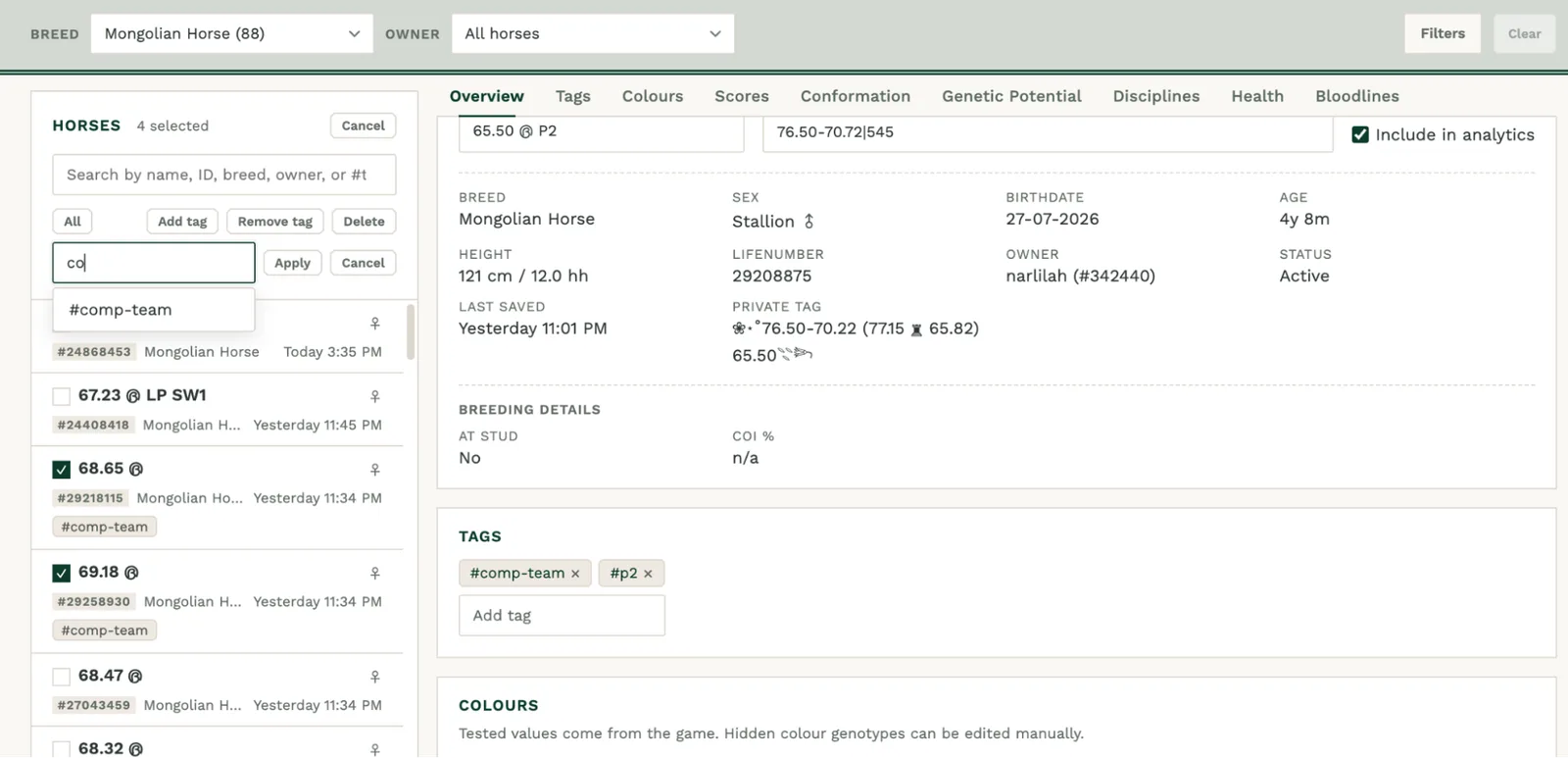
Add up to 10 tags to any horse from its record. You can use tags to group and filter horses, this can be useful in the analytics view if you only want to focus on select horses. You can search for all horses via a #tag in the search box, or use Select above the horse list to add or remove tags on several horses at once.
Filtering your data
You can use filters in both the estate database and analytics view to find horses that match your criteria. The filter panel has General, Colours and Traits tabs. You can filter by
- Breed
- Ownership
- Sex
- Age
- Stats ranges: GP, Breed total, Conformation score, ranging gap, COI
- Conformation trait grades
- GP per trait
- Colour genes
- Tags
- Status
Estate Analytics
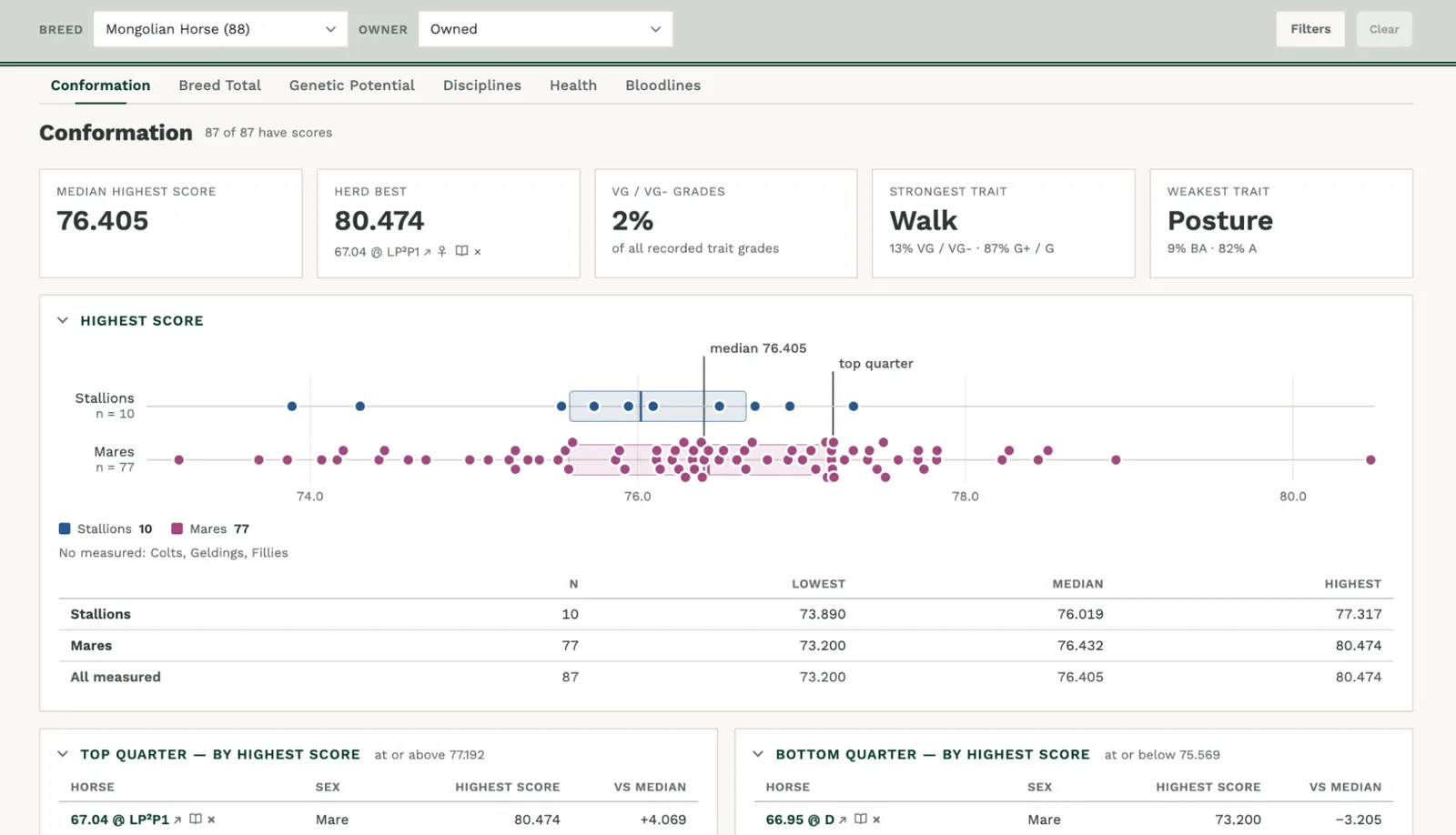
In the estate analytics tab you can find an overview of the horses saved in your estate database. Estate analytics by default only shows your own horses, if you wish to see peer horses saved in your database then use the filters to select the ownership criteria you want.
To leave a horse out, click the × next to its name in any chart row, or untick Include in analytics on its record in the estate database. Just like the Estate Database, you can filter your Estate Analytics.
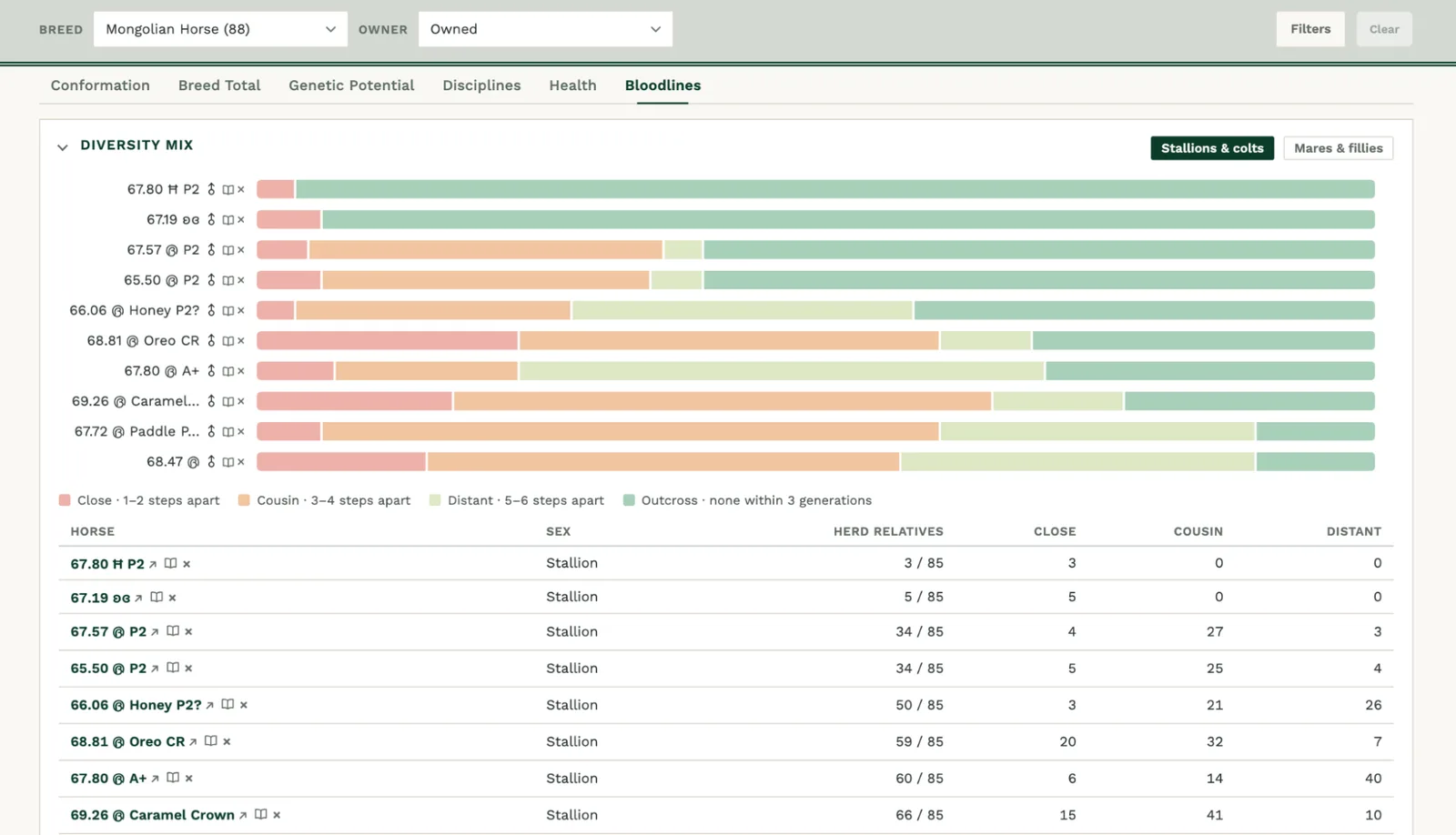
Reading the charts
Each tab opens with summary tiles for your herd, followed by chart cards. Click a horse's name to open its record, use the pills on a card to split it by sex, and click a column heading in a table to sort by it.
Analytics tabs
Conformation: Ranked conformation list, score spread from highest to lowest, ranging gap, trait grades and the grade mix per trait.
Breed Total: BT spread chart, a ranked BT list, and a GP vs conformation score scatter split at your herd’s medians, which shows which input is holding each horse back.
Genetic Potential: GP totals, your herd's average for each GP stat, and every horse's GP stats.
Disciplines: Pick a discipline to see its specific discipline GP, BT and OBT, estimated score ranges, trait fit and your herd's discipline affinity.
Health: Health test results for each horse and the result mix per test.
Bloodlines: Herd relatives, diversity and breeding pair mix, most common ancestors, missing pedigrees and COI.
Breeding Planner
The Breeding Planner ranks partners for any mare or stallion in your Estate Database. Open it from the Estate Data tab.
Finding partners
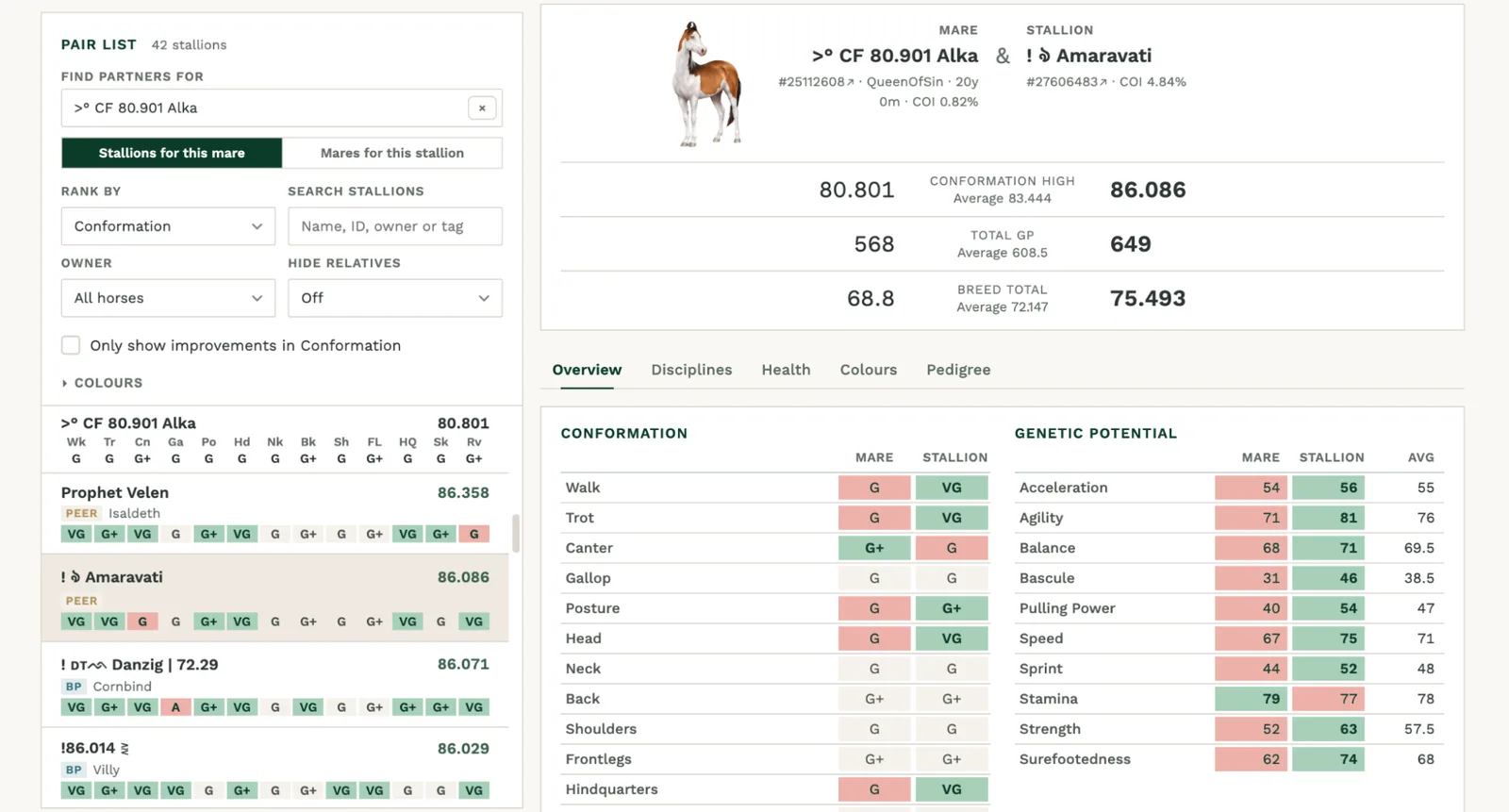
Choose a breed at the top of the page, then pick a mare or stallion under Find partners for. The Owner and Hide pregnant / covered options at the top decide which of your horses you can pick from. The pair list then ranks every partner of the opposite sex by the breeding goal you have selected.
Rank by: GP (total or a single stat), conformation (score or a single trait), a discipline's GP, BT or OBT, or breed total.
Search: Find a partner by name, ID, owner or tag.
Owner: Choose whether partners come from your own horses, peers or breeding partners.
Hide relatives: Hide partners that share ancestors within 1, 2 or all 3 generations.
Only show improvements: List only partners that beat your horse on the trait you're ranking by.
Colours: Filter partners by colour genes, the same way as the Estate Database colour filters.
Pair sheet
Click a partner to compare both horses side by side. Parents and overall scores sit at the top, with five tabs below:
Overview: Conformation and GP stats for both horses.
Disciplines: Each discipline's stats for both horses.
Health: Both horses' health test results.
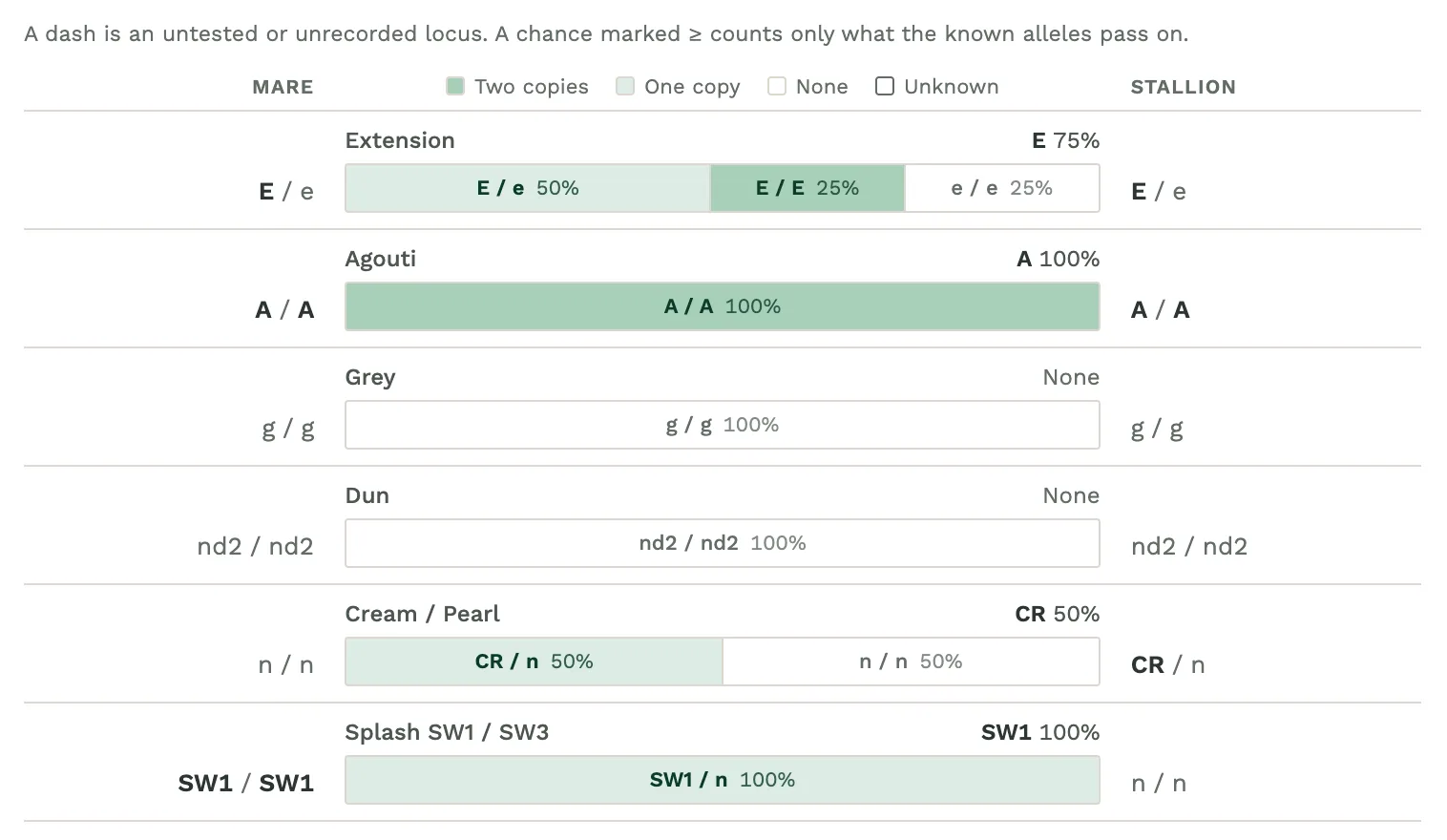
Colours: Possible foal genotypes and their odds for each locus, once colour tests are captured.
Pedigree: Both pedigrees, with shared ancestors highlighted.
When you're ready, click the mare's name to copy it, then use the ‘Open breeding page’ button to go straight to the relevant stallion’s breeding page on HR. If the stallion is retired, you get a link to your vial freezer instead.
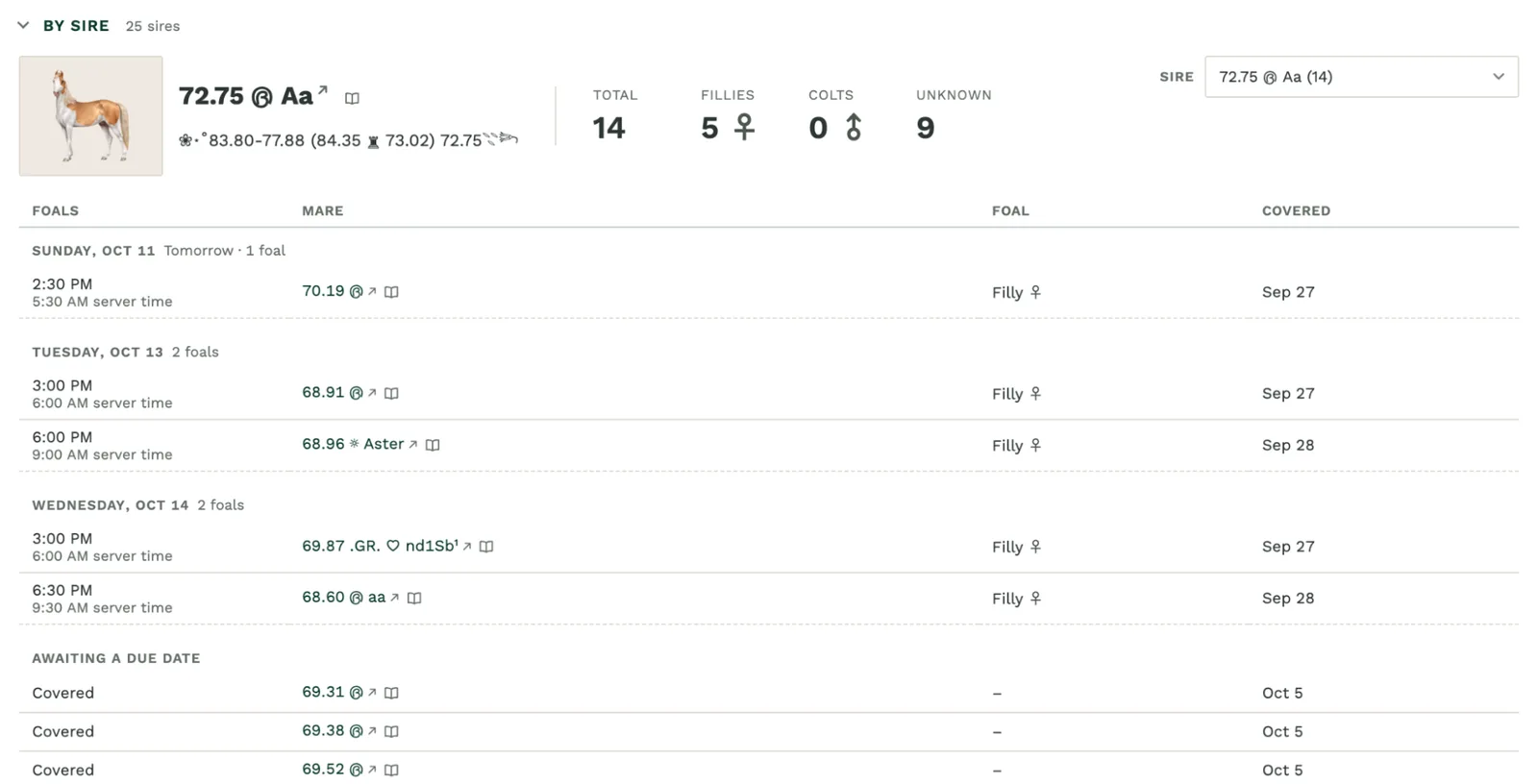
Foal Calendar
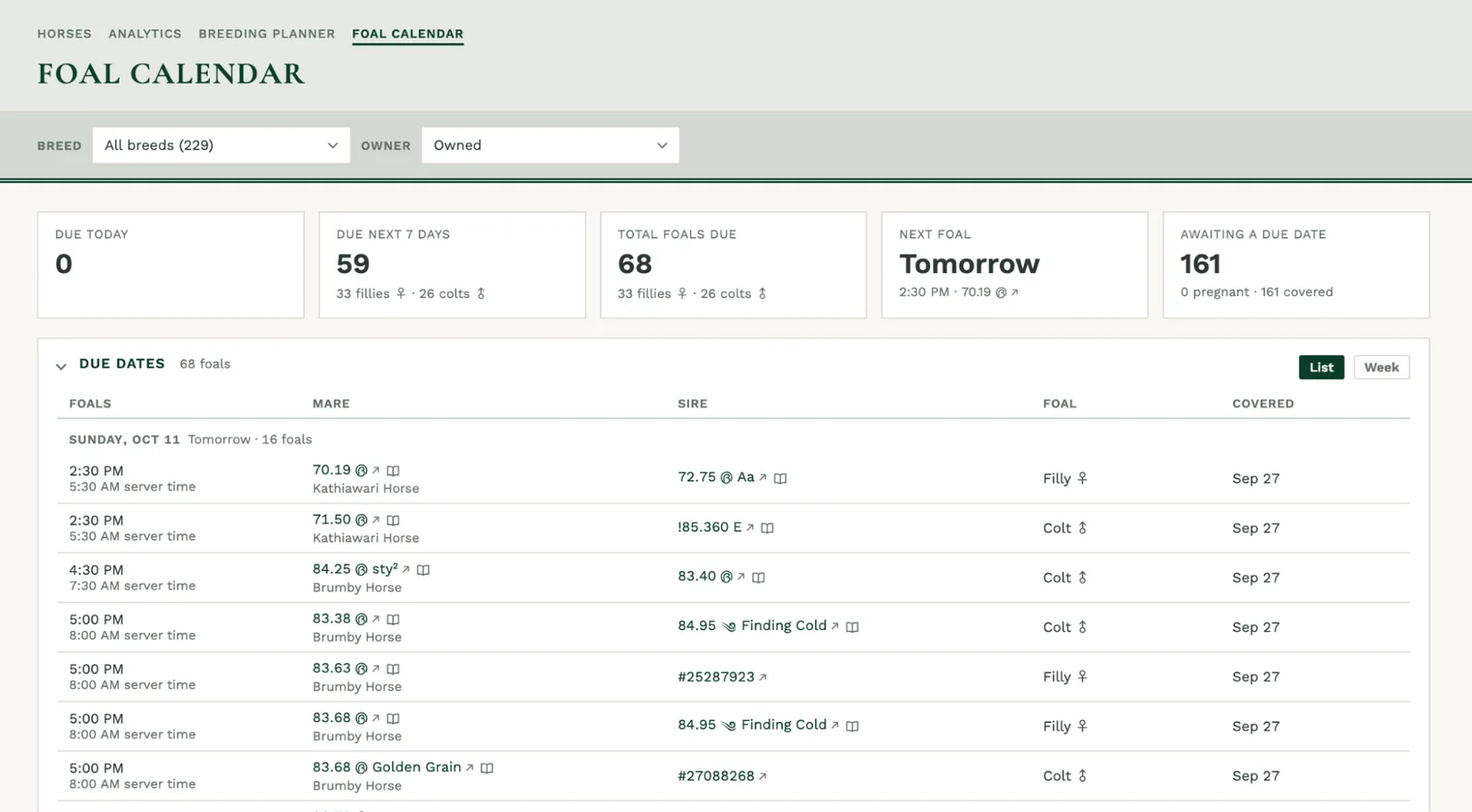
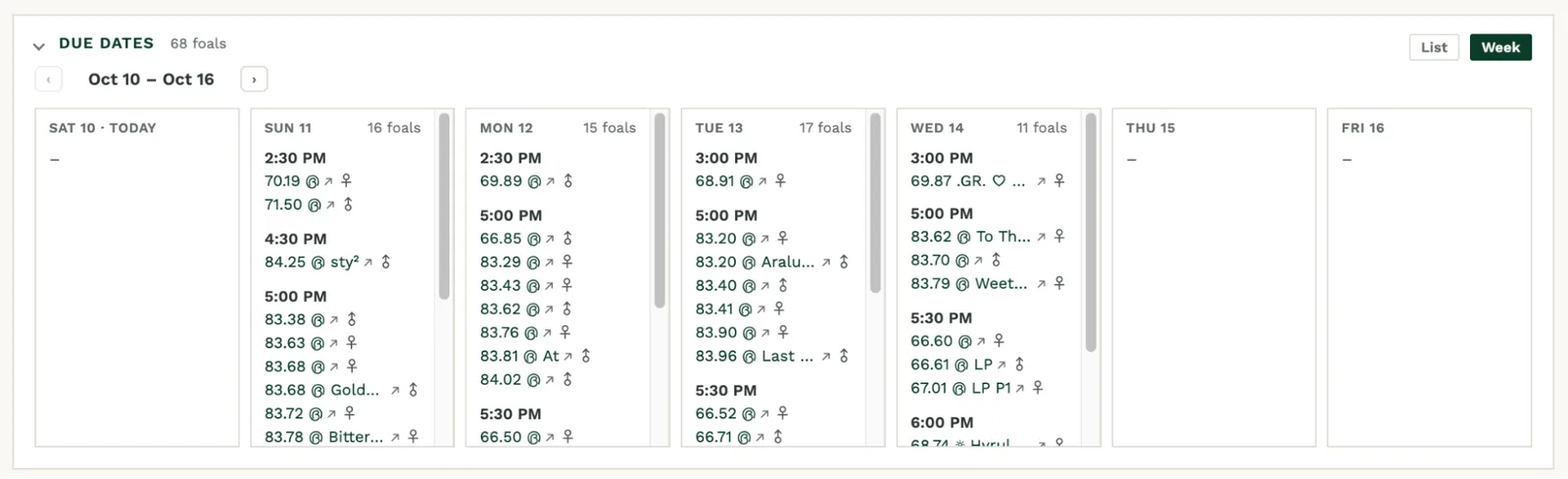
The Foal Calendar lists every expecting mare in your Estate Database, in a list or week view. Due times are listed in both your local time and HR server time. This page is separate from the estimated foaling times setting under Horse Management, which adds times to HR's own foal calendar.
Summary tiles at the top show foals due today, in the next 7 days and in total, when the next foal is due, and how many mares are still awaiting a due date.
List and Week views
List: Every expected foal, grouped by day, with Today and Tomorrow marked.
Week: One week at a time. Use Previous week and Next week to move through the calendar.
Tracking pregnancies
Mares are marked as covered when you breed them on HR. Foal sex is recorded once the ultrasound is done and you revisit the mare’s profile. Mares past their due date sit under the To confirm heading until you visit their profile.
The Stallion card allows you to see every expectant foal by a given stallion in your herd.
Horse Management: Profile tools, breeding & shows
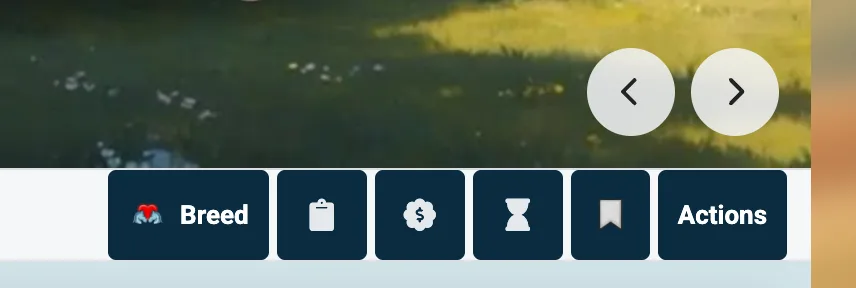
Action bar
Adds additional quick-access buttons to the action bar on horse profiles. Toggle each one individually:
- Clipboard: Copies a formatted stat summary of the given horse to your clipboard. Great for when filling out stud or auction listings off site.
- Sell: A shortcut straight to the sell page.
- Age up: A shortcut to the aging popup.
Private tag
Controls where your private tags show up beyond horse profiles:
- Breeding page: Show private tags on the breeding pair selection page, under both the first horse and whichever partner you pick from the dropdown.
- Stable page: Show private tags in your stalls, right next to each horse's public tagline. A blue dot marks the public tagline and a pink dot marks your private tag; long tags truncate and expand on click.
- Font size: How large private tags render on horse profiles.
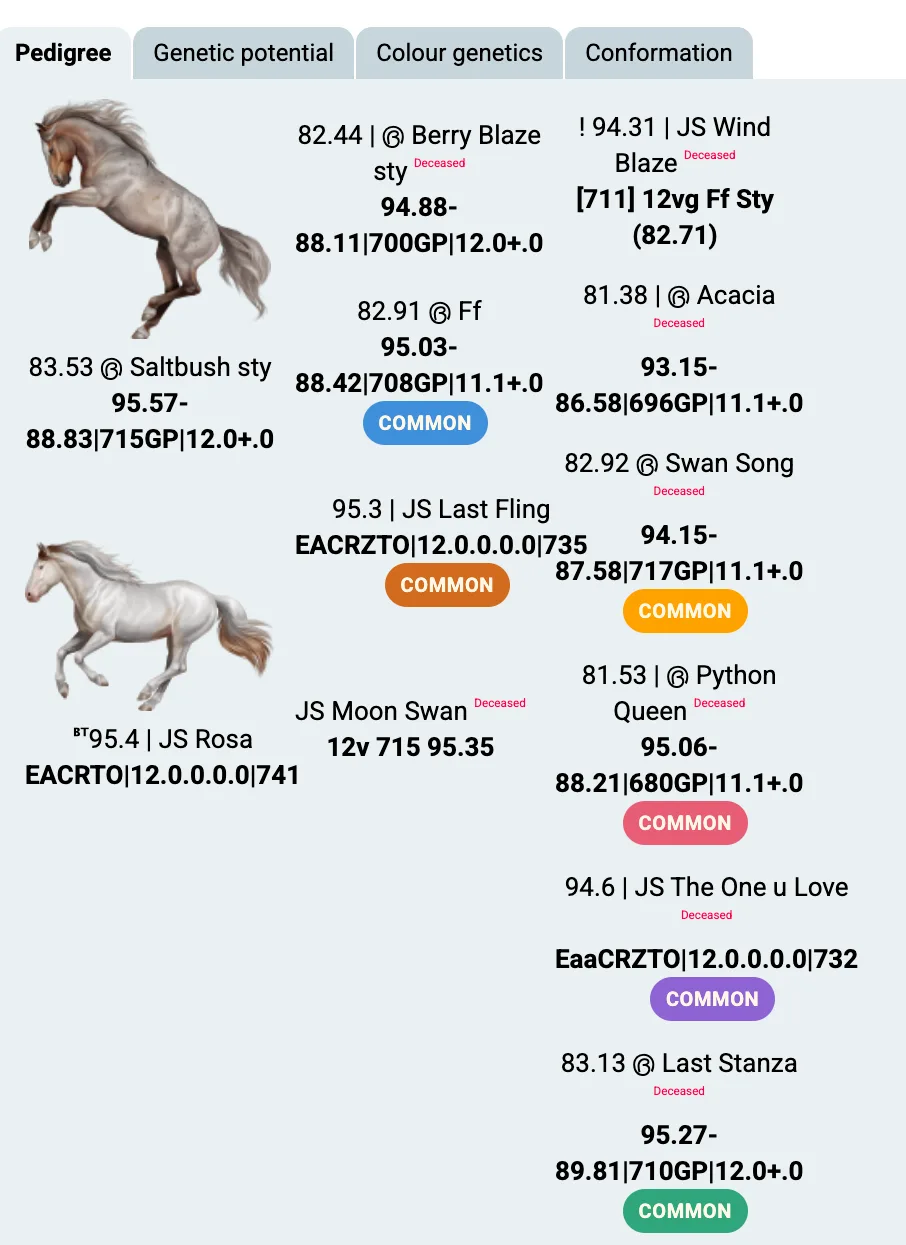
Common ancestors
Highlight shared ancestors when on the breeding view. HRToolkit checks both pedigrees and puts matching colour-coded badges on every ancestor that appears on both sides, making it easier for you to avoid inbreeding. It will appear both on the normal breeding and artificial insemination pages.
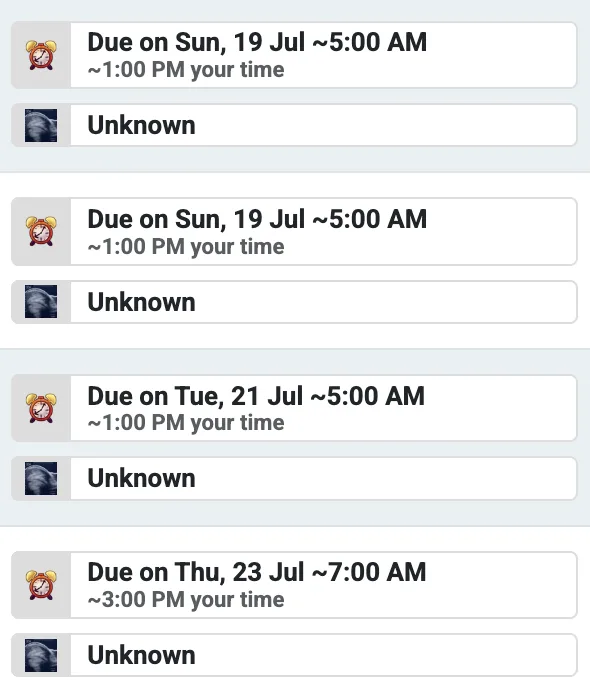
Estimated foaling times
Show estimated foaling times on the foal calendar. The time will be shown in both the HR server time and your local time.
You need to have access to the foal calendar via a premium subscription for this feature to work.
Shows & competitions
- Ignore all-time lows outside breed range: A new conformation all-time low must be at least the all-time high minus the breed's range. Scores lower than this are ignored and the previously recorded all-time low is kept, so shows entered without care can't drag the low outside the max lowest possible range.
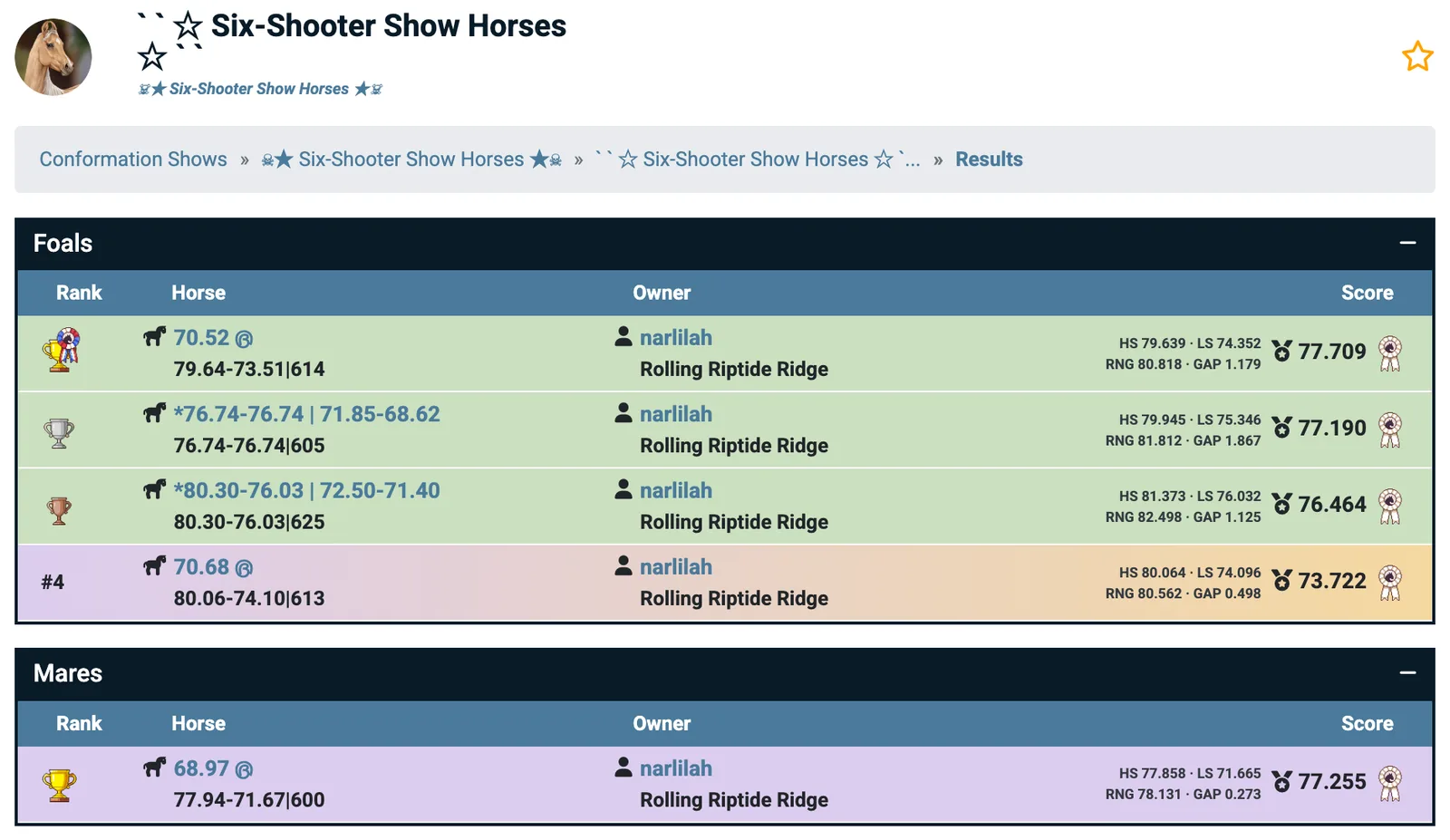
- Only show your horses: Filters conformation show results pages down to just your own horses, so you're not scrolling through everyone else's.
- Highlight new all-time high/low scores: Highlight result rows when your horse scores a new all-time low or high making it easy for you to see them.
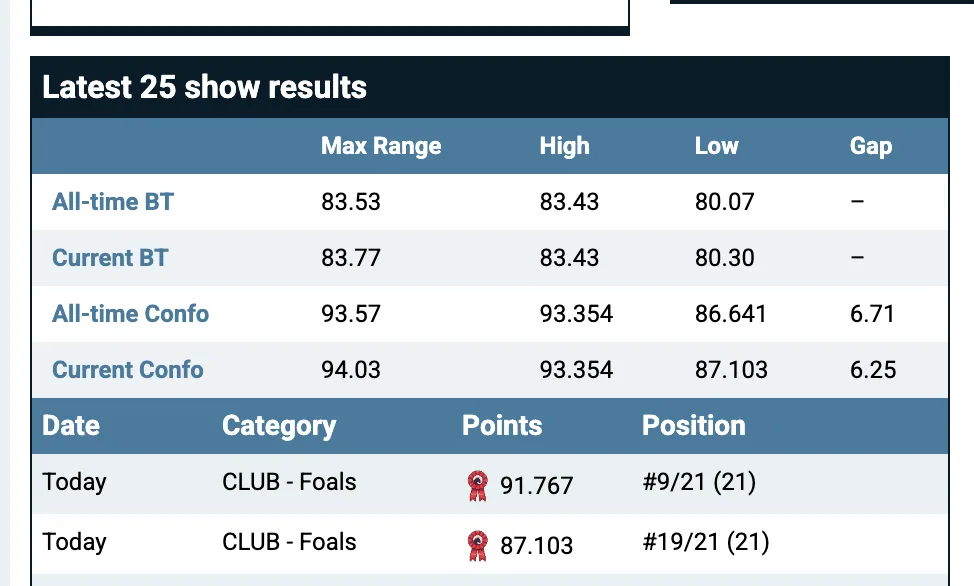
- Show all-time high values: Show the all-time low, high, max range and ranging gap for each of your horses on the conformation show results page.
- Highlight horses within ranging gap: Highlights your horses in lilac on the show results page when their ranging gap is within your gap limit.
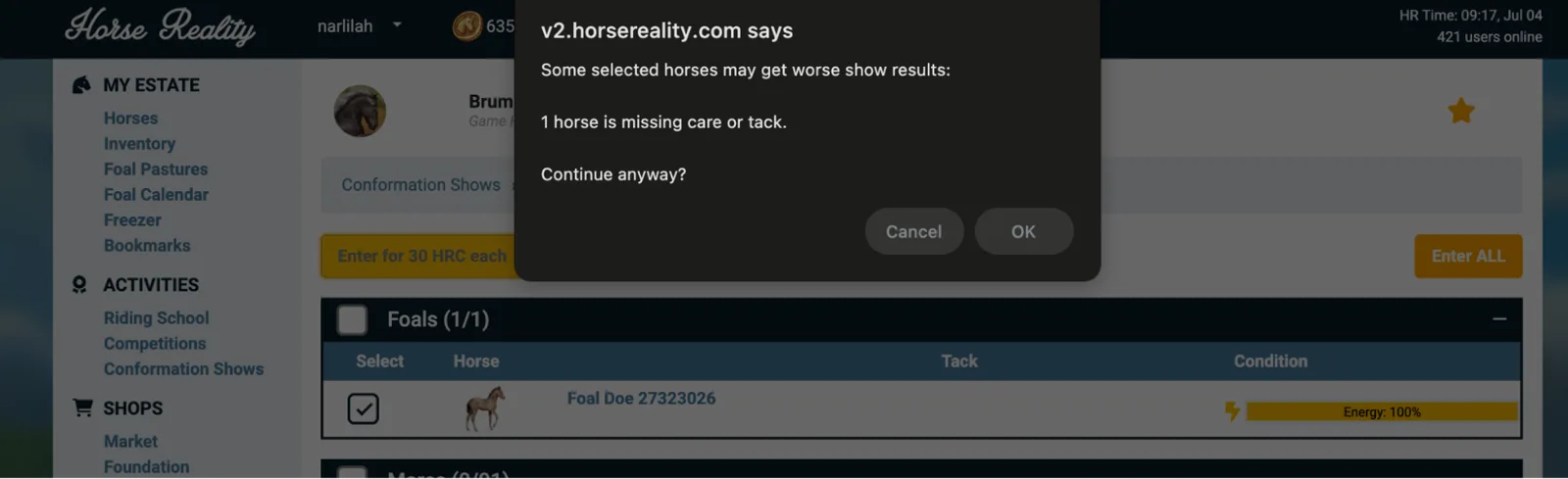
- Conformation show warning: Warns you on show entry pages when a horse isn't ready (needs caretaking, or is missing its halter/tack). Entering unprepared horses means lower scores, so this catches it before the mistake is made. Works on both game-hosted and club-hosted shows.
- Competition show warning: Coming soon! - Apologies, lack of stable space means I have been unable to purchase a horse with comp training in order to develop and test this feature.
Getting the most out of HRToolkit for ranging
Given that scores are only autosaved from the conformation show result page for horses that you own and are stored in your estate database it is recommended that before you start ranging, simply visit each horse’s profile page a single time so that an entry for the horse is made in your Estate database.
From that point on when ranging, so long as you visit the results page the all-time scores will update. If you miss going to the results page you may want to visit the horses profiles to capture any all-time low or highs you missed from the results page.
The ranging gap is a horse's max range (its all-time low plus the breed's range) minus its highest score. A gap of 0.000 means the horse is fully ranged. You'll find it on horse records in your Estate Database, as a filter, and as a highlight on show results pages.
Navigation: Getting around HR quickly
Quick search
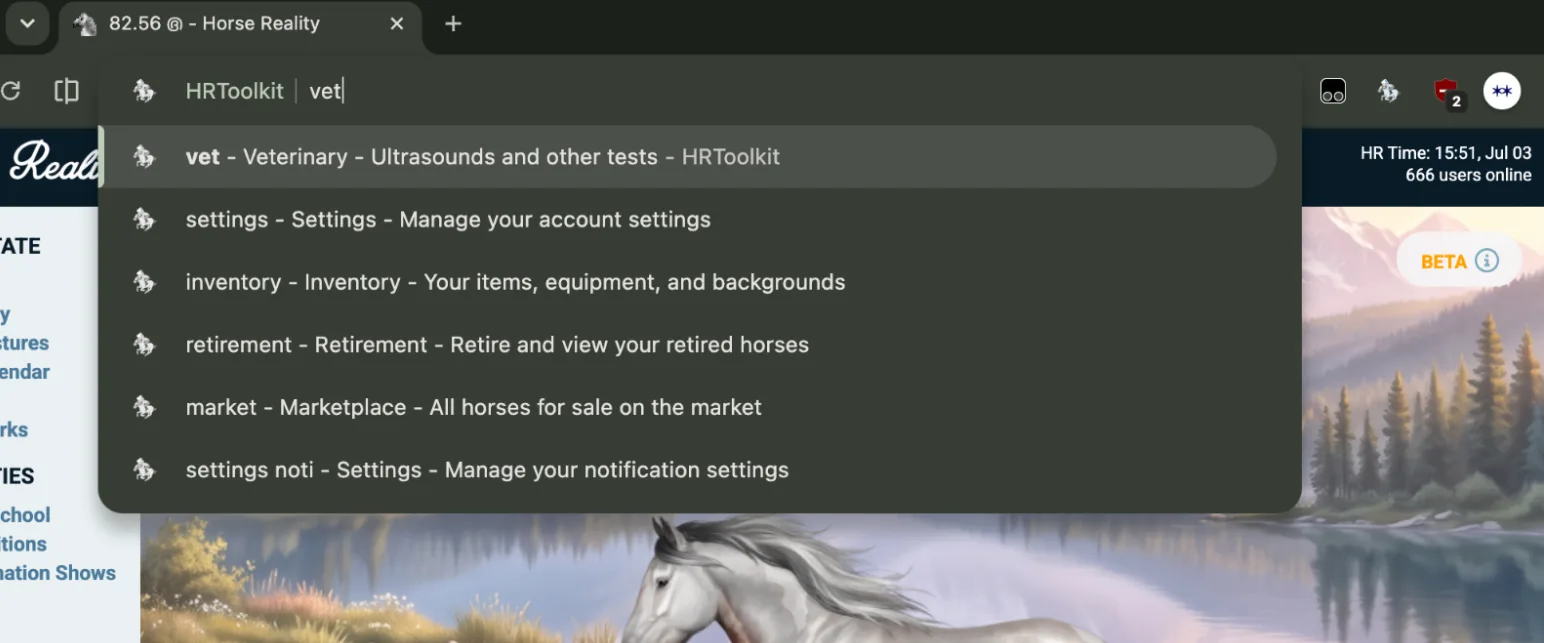
The fastest way to get anywhere in Horse Reality: the hr keyword in the chrome address bar.
- Click the address bar and type
hr - Press
tab - Type a command – suggestions appear as you type
- Press
enter
For example, hr -> tab -> vet -> Enter takes you straight to the veterinary page. With nothing typed yet, it suggests popular destinations: shows, store, sales, studs, foal, bank, or type commands to open the full list. You can also browse every command from View all commands in the popup.
Note that quick search isn't available in Firefox.
Shortcuts
Add up to 5 custom bookmarks to Horse Reality's side navigation on v2 pages. Give each one a label and a URL, and they appear under a ‘Shortcuts’ section above "Community" in the side nav. To turn this off remove any entries you have in your shortcut inputs.
Typeahead dropdowns
Enable typeahead dropdowns. This replaces the game's long select menus with searchable inputs. Instead of scrolling through hundreds of horses on the breeding page, or every breed on the market filters just start typing! Applies to horse, item, and breed selectors across breeding, market, tasks, laboratory, inventory, the fitting room, and the foal pasture.
If you find a dropdown on HR you would like this applied to let the StableSociety team know and they will see what they can do.
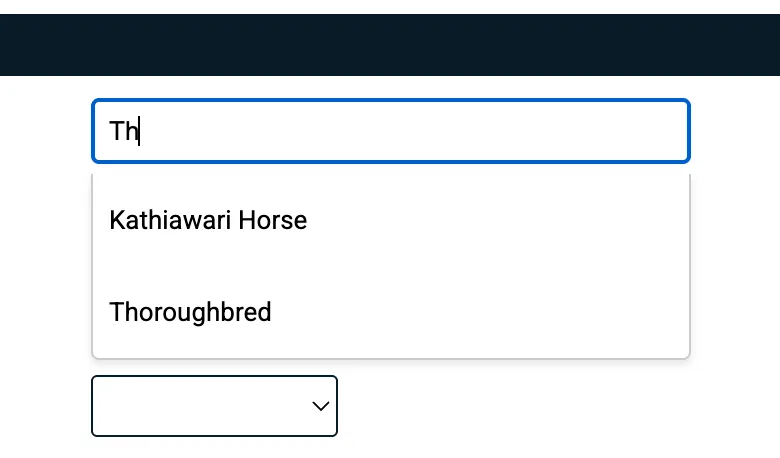
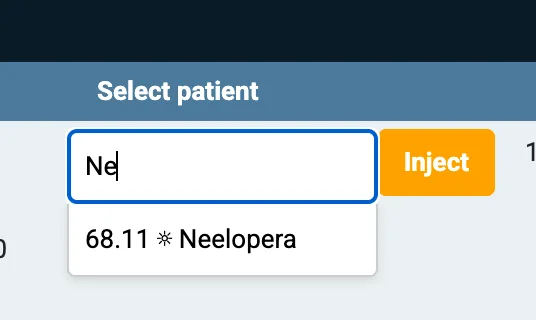
The typeahead in action on different dropdowns on site.
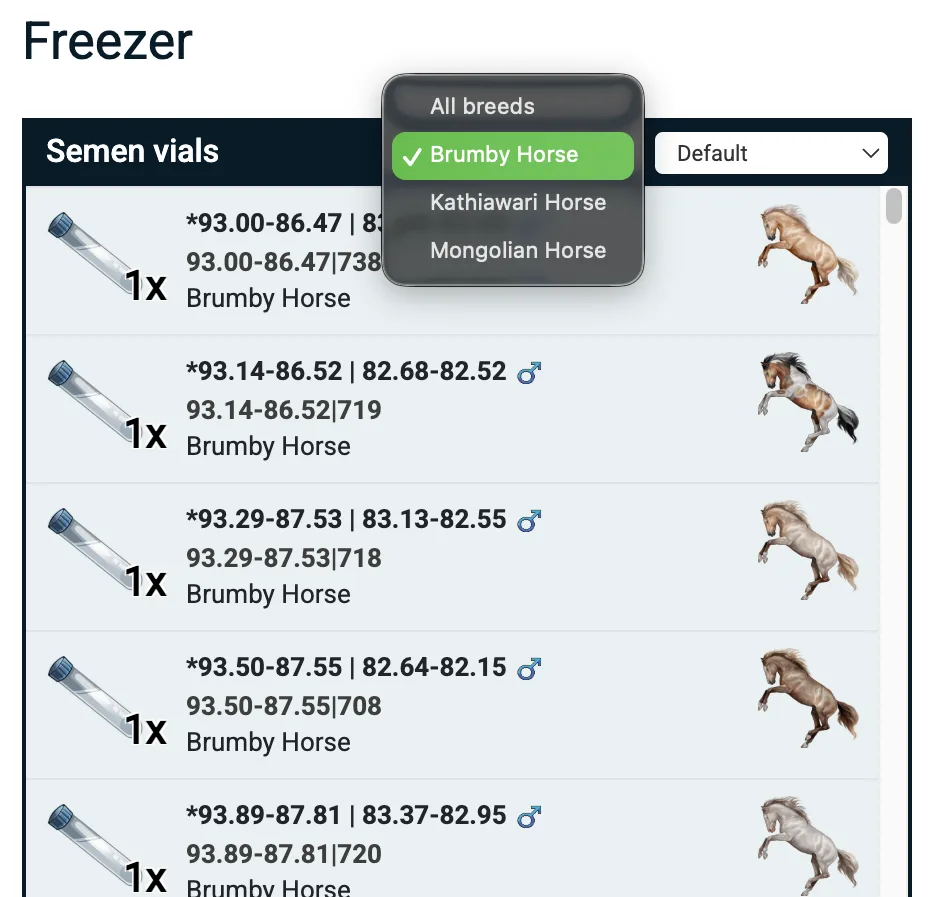
Freezer filters & sorting
You do not need to enable freezer filters & sorting, it is on by default.
You can filter by breeds and sort by name and number of vials.
We hope you enjoy!